How to find which adobe launch rule fires the specific event? | Community
Skip to main content
Level 5
Nov 26, 2022 11:04 AM UTC
Solved

How to find which adobe launch rule fires the specific event?

How to find which adobe launch rule fires the specific event?


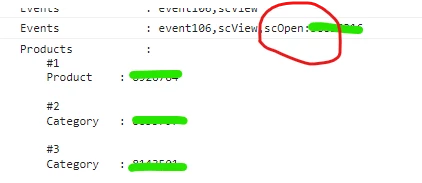
For example in this screenshot I can see scOpen fires but how to find which rule in adobe launch fires it. omnibug shows just the variables which gets fired.


This post is no longer active and is closed to new replies. Need help? Start a new post to ask your question.
Jennifer_Dungan
Jennifer_DunganAccepted solution
Level 2
Nov 26, 2022 5:00 PM UTC

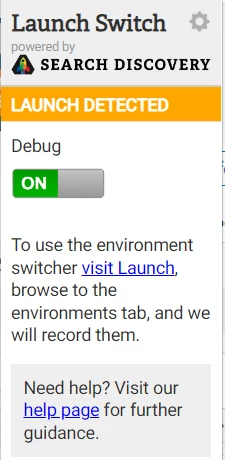
The plugin Launch Switch (even without switching the environment) has a "debug" mode that will add logs into your console about the rules being fired.


https://chrome.google.com/webstore/detail/launch-and-dtm-switch/nlgdemkdapolikbjimjajpmonpbpmipk


It will have general info about your plugins, starting with "[Adobe Analytics]" or "[Experience Cloud ID Service]" and what settings they are applying.


And information about your Rules such as:
Rule "rule a" fired.
or
Condition "rule b" was not met.


Or you like some people have suggested, you can add a console.log("something") into your rules' custom code area... but I don't like to leave stuff like that in production (our developers don't like it much either), so you have to remember to remove it all later.


The plugin makes it easy, turn on Debug, then you are the only one who can see the logs.
 

2 replies

marnier
New Participant
Nov 28, 2022 8:51 PM UTC

Try Tagtician - it is an Adobe Launch/DTM debugger. Export and view entire TMS libraries in a simple, consolidated view.  It can download your library in a .csv format.


https://chrome.google.com/webstore/detail/tagtician-adobe-launch-dt/hiaoiehpkillodoeillmodjcadmfmcbg?hl=en


Translate
Jennifer_Dungan
Jennifer_DunganAccepted solution
Level 2
Nov 26, 2022 5:00 PM UTC

The plugin Launch Switch (even without switching the environment) has a "debug" mode that will add logs into your console about the rules being fired.


https://chrome.google.com/webstore/detail/launch-and-dtm-switch/nlgdemkdapolikbjimjajpmonpbpmipk


It will have general info about your plugins, starting with "[Adobe Analytics]" or "[Experience Cloud ID Service]" and what settings they are applying.


And information about your Rules such as:
Rule "rule a" fired.
or
Condition "rule b" was not met.


Or you like some people have suggested, you can add a console.log("something") into your rules' custom code area... but I don't like to leave stuff like that in production (our developers don't like it much either), so you have to remember to remove it all later.


The plugin makes it easy, turn on Debug, then you are the only one who can see the logs.
 

Translate