Visualization in Workspace | Community
Skip to main content
azizs75681934
New Participant
December 5, 2018
Solved

Visualization in Workspace

  • December 5, 2018
  • 1 reply
  • 1003 views

Hello Peeps,

It is my first post on here.  I am seeking some workspace assistance and need to see if anyone can guide me. 

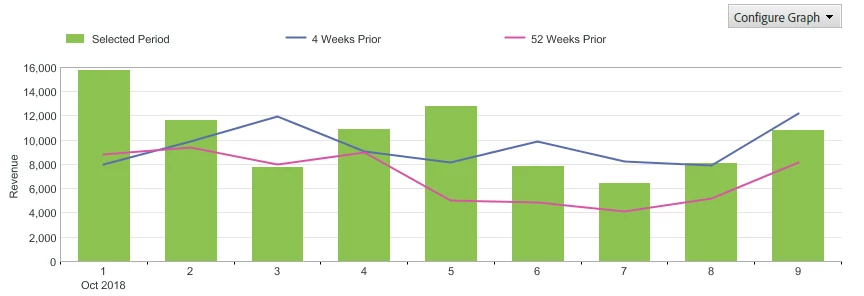
I have been asked to create a report like below. I need 3 metrics on one graph.  With the bar and the lines- is this sort of graph possible in workspace area? Any other way to represent this in workspace?

This post is no longer active and is closed to new replies. Need help? Start a new post to ask your question.
Best answer by Urs_Boller

not exactly the same, but close to. just try the link "in as workspace project" which should be available on every report screen.

if thst doesn't work, follow those steps within a workspace project:

1) create new table with desired metric (orders) and dimension (days) having the main date range (for green bars, change on top right if needed)

2) right click on metric header "orders" and select "compare to other date range" and select the desired  date ranges for comparison. this will add new columns for the desired date ranges. remark: the dimensions on the left (rows) will stay the same. but in each cell of the new columns you will see a small date indicating whith the "compare date"

having this table just create a visualization like "bar chart" or "line".

remark: you can change the "alignment of dates" by changing the settings: open the gear icon of the dimension "day" to change from "start at same row" to "do not adjust" (or something similar, don't have access right now to check)

1 reply

Urs_Boller
Urs_BollerAccepted solution
New Participant
December 5, 2018

not exactly the same, but close to. just try the link "in as workspace project" which should be available on every report screen.

if thst doesn't work, follow those steps within a workspace project:

1) create new table with desired metric (orders) and dimension (days) having the main date range (for green bars, change on top right if needed)

2) right click on metric header "orders" and select "compare to other date range" and select the desired  date ranges for comparison. this will add new columns for the desired date ranges. remark: the dimensions on the left (rows) will stay the same. but in each cell of the new columns you will see a small date indicating whith the "compare date"

having this table just create a visualization like "bar chart" or "line".

remark: you can change the "alignment of dates" by changing the settings: open the gear icon of the dimension "day" to change from "start at same row" to "do not adjust" (or something similar, don't have access right now to check)