Capturing Text from Form Using Adobe Launch | Community
Skip to main content
New Participant
April 23, 2018
Solved

Capturing Text from Form Using Adobe Launch

  • April 23, 2018
  • 2 replies
  • 4001 views

I am trying to capture text from a form field using Adobe Launch.  See form code below...

How should I configure launch to capture the text from my form field?

Thanks

<input id="ticker1" type="text" class="idc-form2 etfLookup ui-autocomplete-input" data-bind="event: { keydown: changed }" autocomplete="off" role="textbox" aria-autocomplete="list" aria-haspopup="true">

This post is no longer active and is closed to new replies. Need help? Start a new post to ask your question.
Best answer by jantzen_b

I'd first start by trying to create a data element that pulls the value from the from field when called. You can try something similar to what I've put below. Keep in mind, I can't see the rest of your page so you'd definitely need to test this.
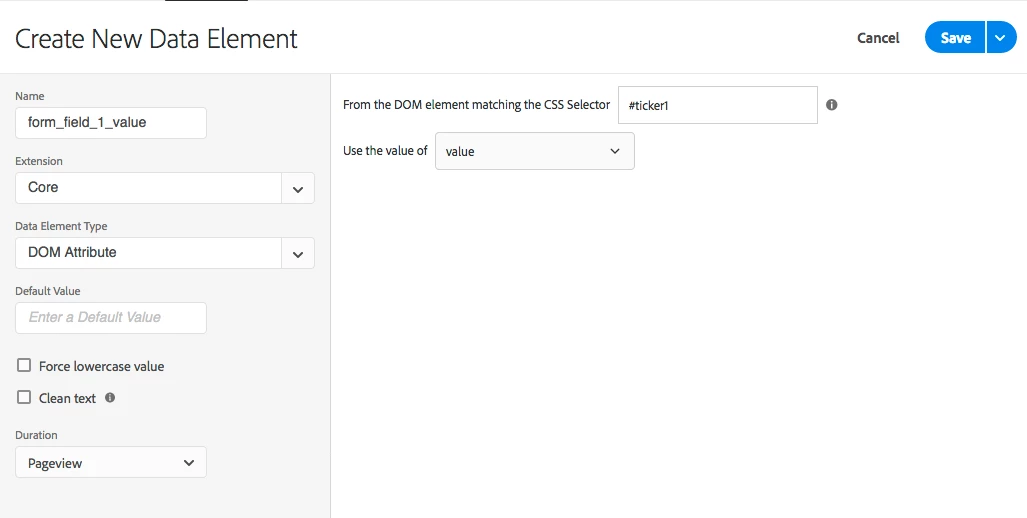
Once you get the data element pulling the correct value, you'll need to decide when you are going to trigger the rule. For example, do you want to capture the value each time it's changed or just when the form is submitted? Once you've decided that, you can create a rule using the Core extension to trigger based on one of the form events. Once this is set, go ahead and test again to ensure this triggers when the expected action is completed.

Once the rule is firing, you should add conditions to limit it to a specific page or whatever criteria you might need.

Finally, create the action section of the rule to set your variables and fire the required beacons. You can reference the value in your form by referencing the data element we created.

2 replies

eham1906Author
New Participant
April 25, 2018

This worked!  Once again thank you for the help!

jantzen_b
jantzen_bAccepted solution
Employee
April 24, 2018

I'd first start by trying to create a data element that pulls the value from the from field when called. You can try something similar to what I've put below. Keep in mind, I can't see the rest of your page so you'd definitely need to test this.

Once you get the data element pulling the correct value, you'll need to decide when you are going to trigger the rule. For example, do you want to capture the value each time it's changed or just when the form is submitted? Once you've decided that, you can create a rule using the Core extension to trigger based on one of the form events. Once this is set, go ahead and test again to ensure this triggers when the expected action is completed.

Once the rule is firing, you should add conditions to limit it to a specific page or whatever criteria you might need.

Finally, create the action section of the rule to set your variables and fire the required beacons. You can reference the value in your form by referencing the data element we created.