
How to get eVar in a custom code JavaScript | Launch | Community
Skip to main content
C_Evans
New Participant
May 14, 2021
Question

How to get eVar in a custom code JavaScript | Launch

  • May 14, 2021
  • 3 replies
  • 5551 views

Hey guys,

I’m trying to get an eVar in a custom code box using JavaScript so I can pass it to another system. Documentation says it should be s.eVar. But of course that is returning "undefined" for me. My question is how can I get that variable?


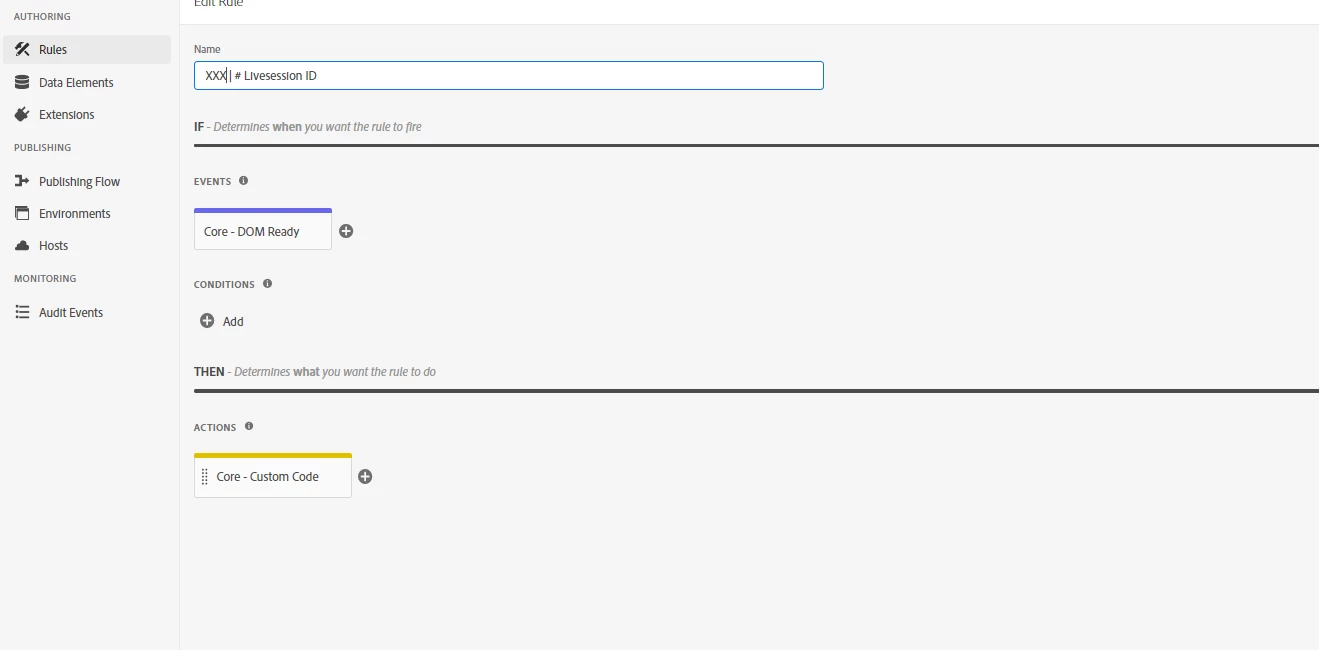
The  Rule
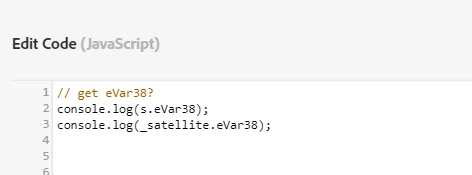
The Code
The Console



This post is no longer active and is closed to new replies. Need help? Start a new post to ask your question.

3 replies

tim_funk
New Participant
May 18, 2021

There are a 2 issues. (one right now, one I bet you'll discover later)


1) eVar38 is on the "s" variable. When editing custom code - The variable with the analytics attributes is "s". [But if you look in the browser during debugging, the minifier may change the variable to probably by "t".]


This means you want s.eVar38 ... or console.log("s.eVar38=" + s.eVar38)


2) The second error is setting s.eVar38 will do nothing unless Analytics knows to track it. You'll need to notify the analytics library to pull in that variable into the beacon via linkTrackVars. For example - this is probably what you will need:


s.eVar38 = magicBusinessLogicToPossiblePopulate()

if (s.eVar38) {

  if (s.linkTrackVars!=undefined && s.linkTrackVars.length>0) {

    s.linkTrackVars += ",eVar38"

  } else {

    s.linkTrackVars = "eVar38"

  }

}


All that being said - I agree with the other reply stating the value of eVar38 should instead be set in a data element. Then the analytics rule can be MUCH smpler by just pulling in that data element (with no extra code on the analytics rule)


yuhuisg
New Participant
May 15, 2021

Instead of reading from your eVar38, how about reading from the data element that is being used to set eVar38?

For example:

You have a data element called "my variable".

And in your AA extension itself or in its "Set Variables" action, you have:

s.eVar38 = %my variable% // or s.eVar38 = _satellite.getVar("my variable");

In that case, you can use

console.log(_satellite.getVar("my variable"))

and it will return the same value as what has been set in eVar38.

Jacob-DDdev
New Participant
May 17, 2021

Just as a note here, it is best to stick with the debug logging which doesn't require updating code or accidentally leaving in console logging.

Instead of using console.log(), try to stick with 


_satellite.logger.log()


 These debugging entries can sometimes stay in your code to help you the next time something breaks.


Jacob-DDdev
New Participant
May 14, 2021

Hi @c_evans ,


Three Options (all require the Analytics extension to include the AppMeasurement code):

Option 1: Use custom code within an Analytics set variable action. This will always allow access to an object with the s namespace. The caveat there is, if the s object isn't set globally, you may have to send the beacons within the same rule as the custom code since you are referencing a local s object, but you could test to see if these values persist through other rules.


Option 2: As an alternative to option 1, you can make a local reference to an s object, or an object of any name with the behavior of the s namespace by calling the s_gi() function within your custom code, and this doesn't require being set within the Analytics action, ref. The caveat is that you would need to run the t() or tl() function to send the beacon from that new object.


Option 3: Change the settings in the Analytics extension to set the s object to be accessible globally. At that point, your custom code, and any other code on the page can reference the global s object.


Side note:

The _satellite object cannot access the variables as a direct property as a default behavior. If you had a data element that stored the value, you could run a _satellite.getVar(<variable name>) to view the value at execution time.