Export Connections | Community
Skip to main content
Level 2
Apr 29, 2022 1:36 PM UTC
Solved

Export Connections

I'm about to switch laptops and would like to export and import all the connections I have configured the ACC client. Since we support quite a few clients on ACC, we have multiple connections to keep track.


Let us know if there is any way to achieve this.


Rajiv

This post is no longer active and is closed to new replies. Need help? Start a new post to ask your question.
DavidKangni
DavidKangniAccepted solution
New Participant
May 3, 2022 3:57 PM UTC

Hi Rajiv,

On the old machine which has the connection information, find the following file and move it over to your new machine:
C:\Users\[myUserId]\AppData\Roaming\Neolane\NL_5\nlclient_cnx.xml


Note: If you'd like to bring over your locally cached info for each connection as well, you can bring along all the other XML you see in these directories, too. (You'll probably want to zip the whole directory in this case because this can be a lot of data.) This is optional.


Using regEdit, find the entries resembling NL_5 and NL_6 below and export each of them:
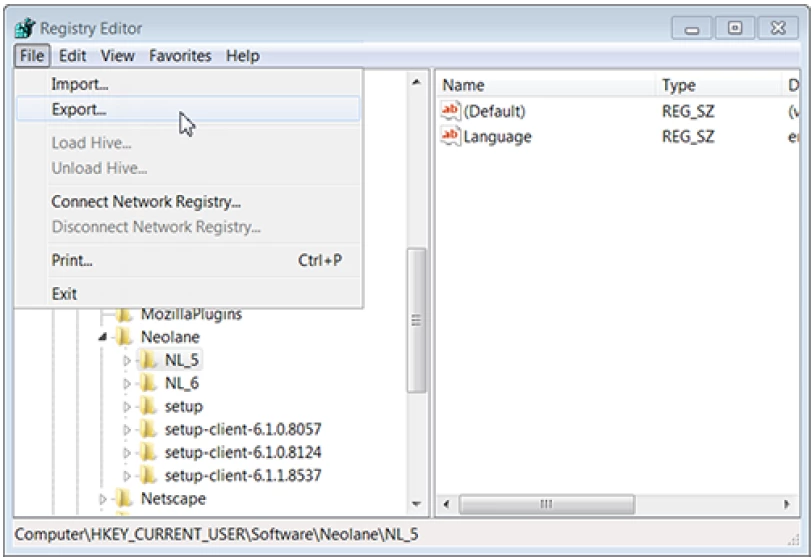


These registry entries contain encrypted passwords for your connections defined above.

Bring the exported keys over to the new machine and use regEdit to import them there.
Lastly, you can open your Adobe Campaign client and confirm that your connections have been brought over along with the corresponding usernames and passwords.


Thanks,

David

David Kangni

4 replies

Level 2
May 3, 2022 4:09 PM UTC

Thank You, @marcel_szimonisz , @dsareen1 , and @davidkangni . Your solutions worked perfectly. 

Translate
DavidKangni
DavidKangniAccepted solution
New Participant
May 3, 2022 3:57 PM UTC

Hi Rajiv,

On the old machine which has the connection information, find the following file and move it over to your new machine:
C:\Users\[myUserId]\AppData\Roaming\Neolane\NL_5\nlclient_cnx.xml


Note: If you'd like to bring over your locally cached info for each connection as well, you can bring along all the other XML you see in these directories, too. (You'll probably want to zip the whole directory in this case because this can be a lot of data.) This is optional.


Using regEdit, find the entries resembling NL_5 and NL_6 below and export each of them:


These registry entries contain encrypted passwords for your connections defined above.

Bring the exported keys over to the new machine and use regEdit to import them there.
Lastly, you can open your Adobe Campaign client and confirm that your connections have been brought over along with the corresponding usernames and passwords.


Thanks,

David

Translate
David Kangni
Employee
May 1, 2022 5:33 PM UTC

Hi Rajiv, 


You can copy and paste the file: nlclient_cnx.xml from the path "C:\Users\<user name>\AppData\Roaming\Neolane\NL_5", from the old machine to the new one.


All your connections will get imported to the new machine.


But since passwords are cached, they will not be migrated.


Thanks,

Deepika

Translate
Marcel_Szimonisz
New Participant
May 1, 2022 2:44 AM UTC

Hello @rajivkamathacc.,

right click anywhere on the white space and edit XML source will give all connections as XML. On the same place you can later paste them and save them.


Marcel


Translate