Update the Look and Feel of Your Forms by Checking Out the Marketo Form Library
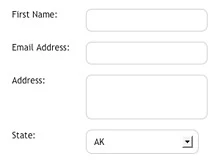
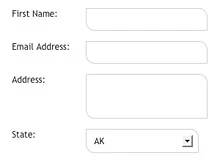
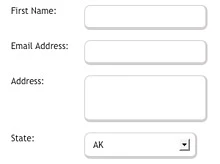
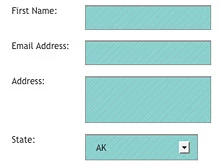
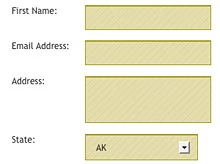
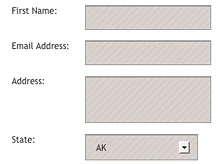
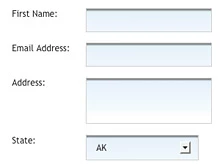
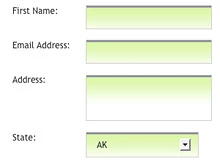
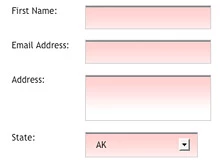
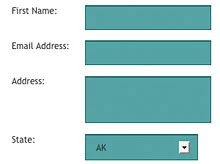
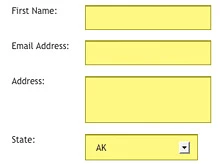
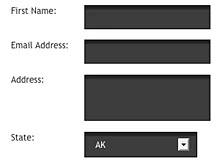
The Form Library lets you style your forms with an up-to-date look and feel just by dragging and dropping the CSS into your Marketo landing pages or template. As a side note, the Form Library ONLY styles input, textarea, and select (drop-downs) fields and NOT your radio buttons or check-box selections.
Here's how it works:
1. Choose a form from the table below by clicking on the image.
2. Download the zipped file to your desktop.
3. Open the file and upload the provided images into your Marketo image library.
4. Open the provided code and replace "mktoWeb" with your directory name.
Example:
<style>
.mktInput input, .mktInput select, .mktInput textarea {
background: url(rs/mktoWeb/images/input_bg.png) repeat-x scroll 0 0;
border: 1px solid #D4D2D2 !important;
font-size:20px;
padding: 8px 10px;
cursor:pointer;
}
.mktInput input:focus, .mktInput select:focus, .mktInput textarea:focus {
background: url(rs/mktoWeb/images/input_bgHover.png) repeat-x scroll 0 0;
}
</style>
5. Copy the code and paste in on your landing page by choosing the Custom HTML option within the design studio.
Is this article helpful ?
Download code for this form |
Download code for this form |
Download code for this form |
Download code for this form |
Download code for this form |
Download code for this form |
Download code for this form |
Download code for this form |
Download code for this form |
Download code for this form |
Download code for this form |
Download code for this form |