How design aem template for below page requirement | Community
Skip to main content
Best answer by Anil_Chennapragada

Hi @amitsi18 ,

Thanks for reaching out. Based on the above requirements , there are multiple ways to achieve this below is one of the option

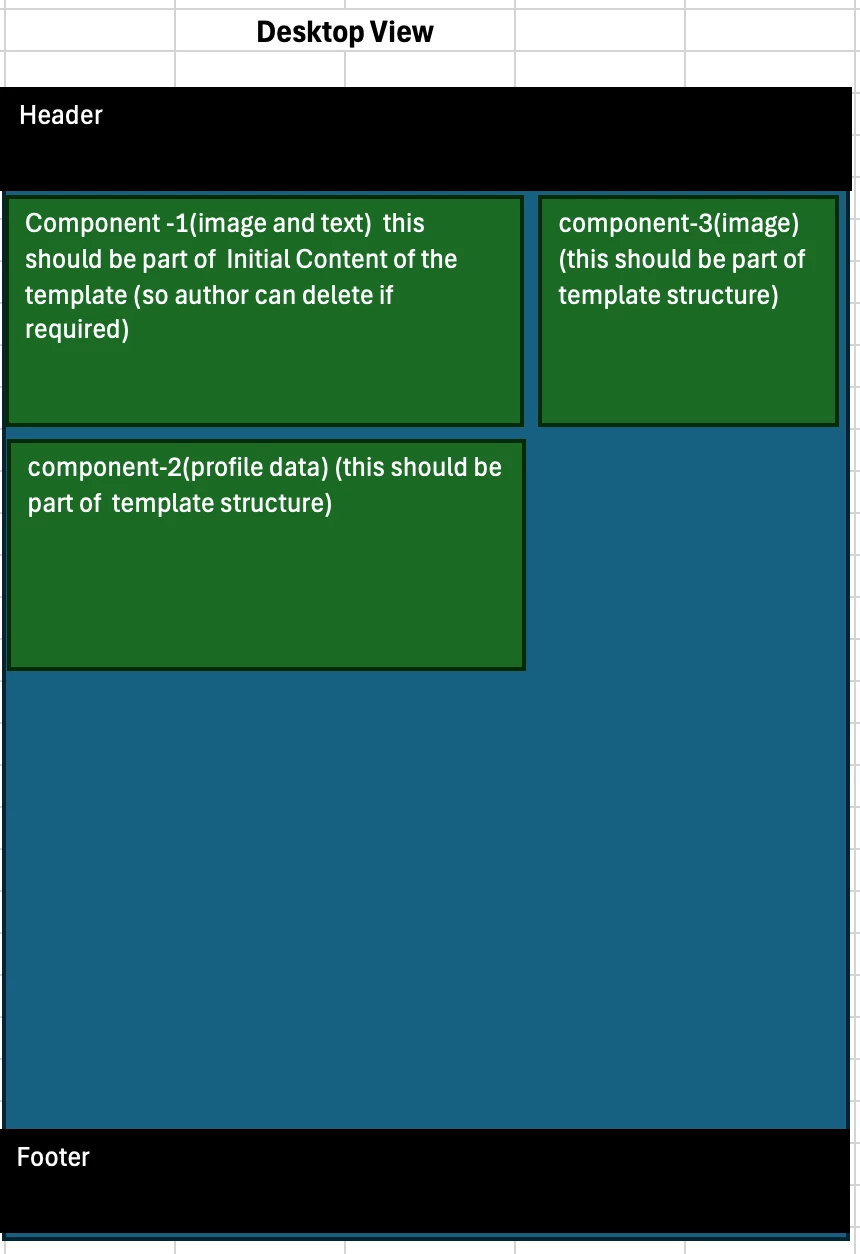
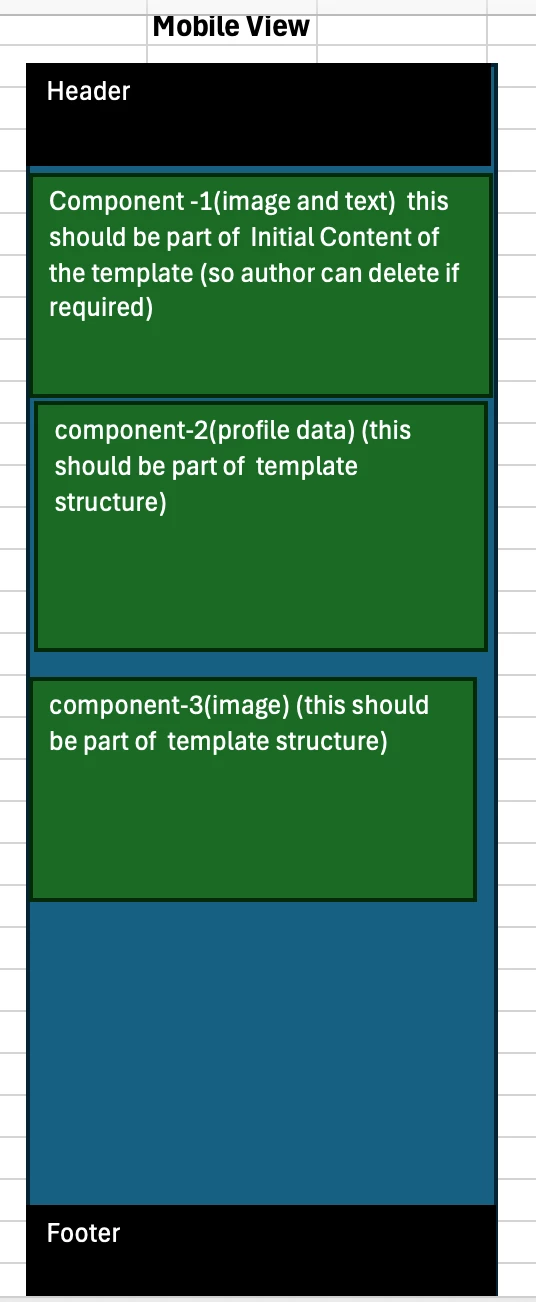
  1. Create an Editable Template -> Navigate to the structure -> add a container -> add a responsive grid component and set it to the respective columns as per the Desktop and mobile requirements
  2. Add the component 3 needed in the structure
  3. Add a container below that and add the component 2
  4. Navigate to the Initial content and add the component 1 inside the responsive grid to the left side and make sure the component is unlocked for the author to edit or delete it  

Thanks,

Anil

2 replies

Anil_ChennapragadaAccepted solution
New Participant
April 25, 2025

Hi @amitsi18 ,

Thanks for reaching out. Based on the above requirements , there are multiple ways to achieve this below is one of the option

  1. Create an Editable Template -> Navigate to the structure -> add a container -> add a responsive grid component and set it to the respective columns as per the Desktop and mobile requirements
  2. Add the component 3 needed in the structure
  3. Add a container below that and add the component 2
  4. Navigate to the Initial content and add the component 1 inside the responsive grid to the left side and make sure the component is unlocked for the author to edit or delete it  

Thanks,

Anil

New Participant
April 25, 2025

Hi @amitsi18,

Here’s how you can structure the editable template to accommodate all three components:


  1. Start with a Layout Container in the Template Structure:
    Begin by creating a base layout container within the template structure using the editable template editor and defining the necessary policies.

  2. Divide the Layout into Two Columns:
    Inside the layout container, split the layout into two columns using a responsive grid or similar structure (parsys).

  3. Add Component 3 (Structure – Parallel to Component 1):
    In one of the columns, drag and drop Component 3 and lock it, as it should be part of the structure and not editable at the page level.

  4. Add Component 1 (Inline Content– Parallel to Component 3):
    In the other column, drop component 1 leave it as an editable area (unlocked) so content authors can delete Component 1 if required. This ensures Component 1 is managed at the page level.

  5. Add Component 2 (Structure – Below Component 1):
    Below the two-column layout, add Component 2 directly within the template structure and lock it. This component will appear below the inline content area and will remain consistent across pages.

  6. Responsive Behavior:
    In the layout options, you can also configure the layout for mobile views. This allows you to adjust how the components are displayed on different screen sizes, ensuring a responsive and accessible design.

    Follow this and let me know if you need more help.

         Thanks.