Translating site pages via import/export process | Community
Skip to main content
Faizaan_Shaikh
Level 2
Oct 26, 2017 6:49 AM UTC
Solved

Translating site pages via import/export process

Hello All,

We need to implement below mentioned translation process for our website..

  • Export site pages in xml or any other format eg: json,csv etc.
  • Manually translate values in english to some other language
  • Import files back into AEM to update pages with translated values.

Really appreciate if can get some suggestions best way to implement this or if there is any tool available to export/import pages with all metadata.

Thanks,

Faizaan Shaikh

This post is no longer active and is closed to new replies. Need help? Start a new post to ask your question.
smacdonald2008
smacdonald2008Accepted solution
Level 10
Oct 26, 2017 3:55 PM UTC

Here is input from the Eng team....

Hi Scott,

This is achievable with the OOTB translation features. The steps are listed below, they should work with AEM 6.1 and later versions. Screenshots are from 6.3.

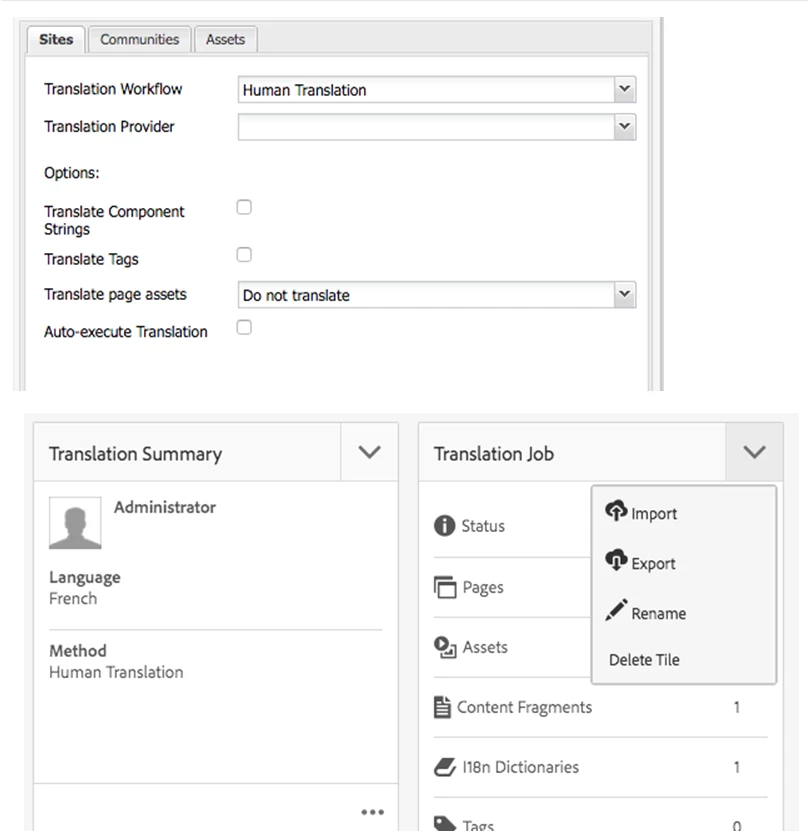
  1. In Cloud Services > Translation Integration, create a translation configuration that uses Human Translation as the translation workflow, and leave the translation provider option as blank (see top screenshot).
  2. Associate the site to use the newly created translation configuration, by opening the site's properties, then going to Cloud Services, Cloud Service Configurations > Translation Integration, and selecting the configuration created in the previous step.
  3. Create a translation project for the translatable content.
  4. Open the translation project, and in the Translation Job tile > dropdown, select Export (see bottom screenshot). This will download a compressed file to the local machine. This compressed file contains xml files and any asset files associated with the web pages that are included in the translation job.
  5. Translate the xml and asset files.
  6. Recompress the xml and asset files, use any filename you’d like.

  Back in the Translation project / translation job tile, select Import, and select the compressed file you created in step 6.

8 replies

danielc9244687
New Participant
Feb 11, 2019 10:04 PM UTC

At least as of AEM 6.3 you need to install the XLIFF connector from the Marketing Exchange. It runs an OKAPI process to convert the AEM XML to XLIFF for export. If I recall correctly, it can be used for manual export or as an option before invoking a TMS connector.

Translate
New Participant
Jun 12, 2018 9:29 AM UTC

Hi Scott,

I tried the solution you have given but i am not getting the Page content in XML format but some properties in it.

Thanks,

Translate
New Participant
Apr 19, 2018 11:29 AM UTC

Hi,

I am able to export the content in XLIF Format, however when I am trying to import it back after manual translation of content it shows this message in the notification.

Any suggestion on what I am missing here ?

Thanks in advance!

Translate
Level 2
Apr 13, 2018 11:08 AM UTC

The exported files have currently a custom XML format. Is there any reasons why they're not in xliff? Because xliff is at least the well-known format the content translators already use in AEM translator.

Is xliff support for translation projects in the roadmap of future AEM versions?

Translate
shinyc65798995
Level 2
Mar 8, 2018 2:51 PM UTC

smacdonald2008​ Hi Scott, I am trying to import the translated file via code an I am stuck. It will be great if you can give me some pointers. I tried using the AEM OOTB resource type POST servlet to post the data, but it gives 403(http://localhost:4502/content/projects/test/jcr:content/dashboard/gadgets/translationjob with form param :operation, :translationJobPath)

Translate
Faizaan_Shaikh
Level 2
Oct 27, 2017 5:36 AM UTC

Thanks kautuksahni​ / smacdonald2008​ - really appreciate your inputs, will give it a try.

Translate
smacdonald2008
smacdonald2008Accepted solution
Level 10
Oct 26, 2017 3:55 PM UTC

Here is input from the Eng team....

Hi Scott,

This is achievable with the OOTB translation features. The steps are listed below, they should work with AEM 6.1 and later versions. Screenshots are from 6.3.

  1. In Cloud Services > Translation Integration, create a translation configuration that uses Human Translation as the translation workflow, and leave the translation provider option as blank (see top screenshot).
  2. Associate the site to use the newly created translation configuration, by opening the site's properties, then going to Cloud Services, Cloud Service Configurations > Translation Integration, and selecting the configuration created in the previous step.
  3. Create a translation project for the translatable content.
  4. Open the translation project, and in the Translation Job tile > dropdown, select Export (see bottom screenshot). This will download a compressed file to the local machine. This compressed file contains xml files and any asset files associated with the web pages that are included in the translation job.
  5. Translate the xml and asset files.
  6. Recompress the xml and asset files, use any filename you’d like.

  Back in the Translation project / translation job tile, select Import, and select the compressed file you created in step 6.

Translate
kautuk_sahni
Employee
Oct 26, 2017 9:21 AM UTC

smacdonald2008 Any thoughts?

~kautuk

Translate
Kautuk Sahni