Hey Mike,
In code, this sort of thing can be accomplished by using the box-shadow css property to create that drop-shadow. However, in the email universe this is not well supported enough to display consistently across the most popular inboxes.
Here's a link to a site called "Can I Email" which helps to track the support for CSS properties in different inboxes -- this page is specific to the box-shadow property: https://www.caniemail.com/features/css-box-shadow/.
As of today, almost half of the inboxes out there DO NOT support this, and that's why I'd recommend not using the CSS property to accomplish this like you might on a Landing Page.
Instead, the way I've normally seen this accomplished is to include the drop-shadow as a part of the image in Photoshop or whatever you're using to create the graphics. You'll want to save the image as a transparent .png file and then you can insert it into your email just like you would any other image. It is important when doing this that you make sure the canvas for your image is not cropped right up against the edge of the image, you'll want a few extra pixels around the actual image to allow the drop-shadow to show up around the image. In the case of the example you shared here, it looks like the shadow is on the right and bottom of the image so those might get an extra 10px or so beyond the edge of the tan box and the top and left sides could be cropped tight (assuming the shadow doesn't extend beyond the tan box there -- it's hard to tell in the image here).
Let me know if you've got any questions on any of this or if this works out for you to include the shadows in your email?
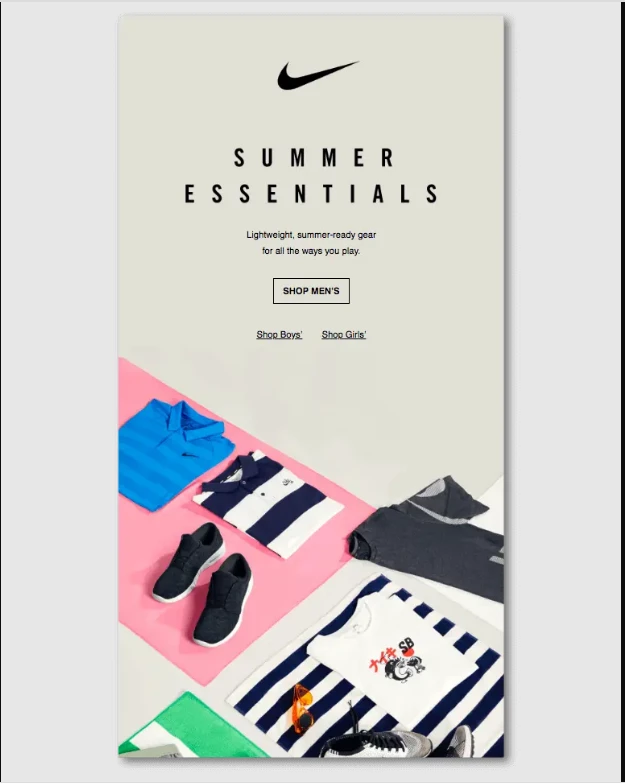 hi all hope you're well? please do we know how i can achieve something akin to this email attached in Marketo? I know we've a piece of work to do around imagery, but would it just be: add in a background we have a hex option on on an image & then match it with the email hex background? would the marketo image modules allow this please?