Anchor in the Newsletter | Community
Skip to main content
October 25, 2017
Solved

Anchor in the Newsletter

  • October 25, 2017
  • 2 replies
  • 10927 views

Hi

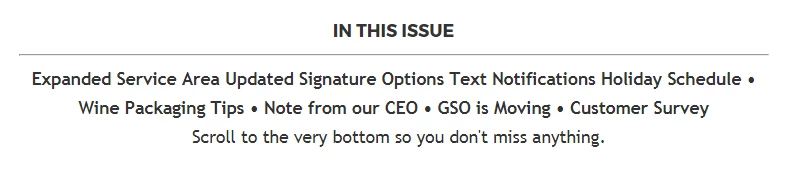
I want to add the anchor in the newsletter section which leads to the different topics in the newsletter. For example, if I click Expanded Service Area, It will lead me directly to the particular section.

I have no experience with working or setting up the anchors but I tried adding the anchor in rich text for each section but I have no idea how to lead it to the particular section.

Please help

Thanks,

Vipula

This post is no longer active and is closed to new replies. Need help? Start a new post to ask your question.
Best answer by Dave_Roberts

There are the two parts you'd need to set something like that up - a "trigger" and a "target". I'd recommend using the HTML editor to make this edit.

You can click the HTML icon to open up the HTML view for your content and find the words you want to serve as the "trigger".

TRIGGER: This will be what you click to "jump" to the section below.

...Expanded Service Area....

you'll want to add in the link around it:

<a href="#Section1"> ...Expanded Service Area ... </a>

TARGET: For the second part, you'll want to add the "target" - this defines where you'd "jump" to. I will usually add this "target" at the top of my content, or on the bottom of the section above it because when you "jump" it'll push this section to the top of the page. If it's too far down, you might clip some of the content on top - if that's happening, just add it to the editable section above. That "target" would look something like this:

<a name="Section1"></a>

... the rest of your content here ...

The "important" pieces here are that the Trigger has a # in front of the "name", that it matches the "name" (with the exception of the #), and that it does not include spaces in the name.

If you'd like to post a piece of your newsletter code, we could put this into play for the greater good - I'd be happy to help!
2 replies

Dave_Roberts
Dave_RobertsAccepted solution
New Participant
October 26, 2017

There are the two parts you'd need to set something like that up - a "trigger" and a "target". I'd recommend using the HTML editor to make this edit.

You can click the HTML icon to open up the HTML view for your content and find the words you want to serve as the "trigger".

TRIGGER: This will be what you click to "jump" to the section below.

...Expanded Service Area....

you'll want to add in the link around it:

<a href="#Section1"> ...Expanded Service Area ... </a>

TARGET: For the second part, you'll want to add the "target" - this defines where you'd "jump" to. I will usually add this "target" at the top of my content, or on the bottom of the section above it because when you "jump" it'll push this section to the top of the page. If it's too far down, you might clip some of the content on top - if that's happening, just add it to the editable section above. That "target" would look something like this:

<a name="Section1"></a>

... the rest of your content here ...

The "important" pieces here are that the Trigger has a # in front of the "name", that it matches the "name" (with the exception of the #), and that it does not include spaces in the name.

If you'd like to post a piece of your newsletter code, we could put this into play for the greater good - I'd be happy to help!

October 26, 2017

Thanks Dave.

Josh_Hill13
New Participant
October 25, 2017

You can do a google search for that topic.