Design Studio Images Not Appearing In Editor | Community
Skip to main content
May 23, 2018
Solved

Design Studio Images Not Appearing In Editor

  • May 23, 2018
  • 1 reply
  • 4579 views

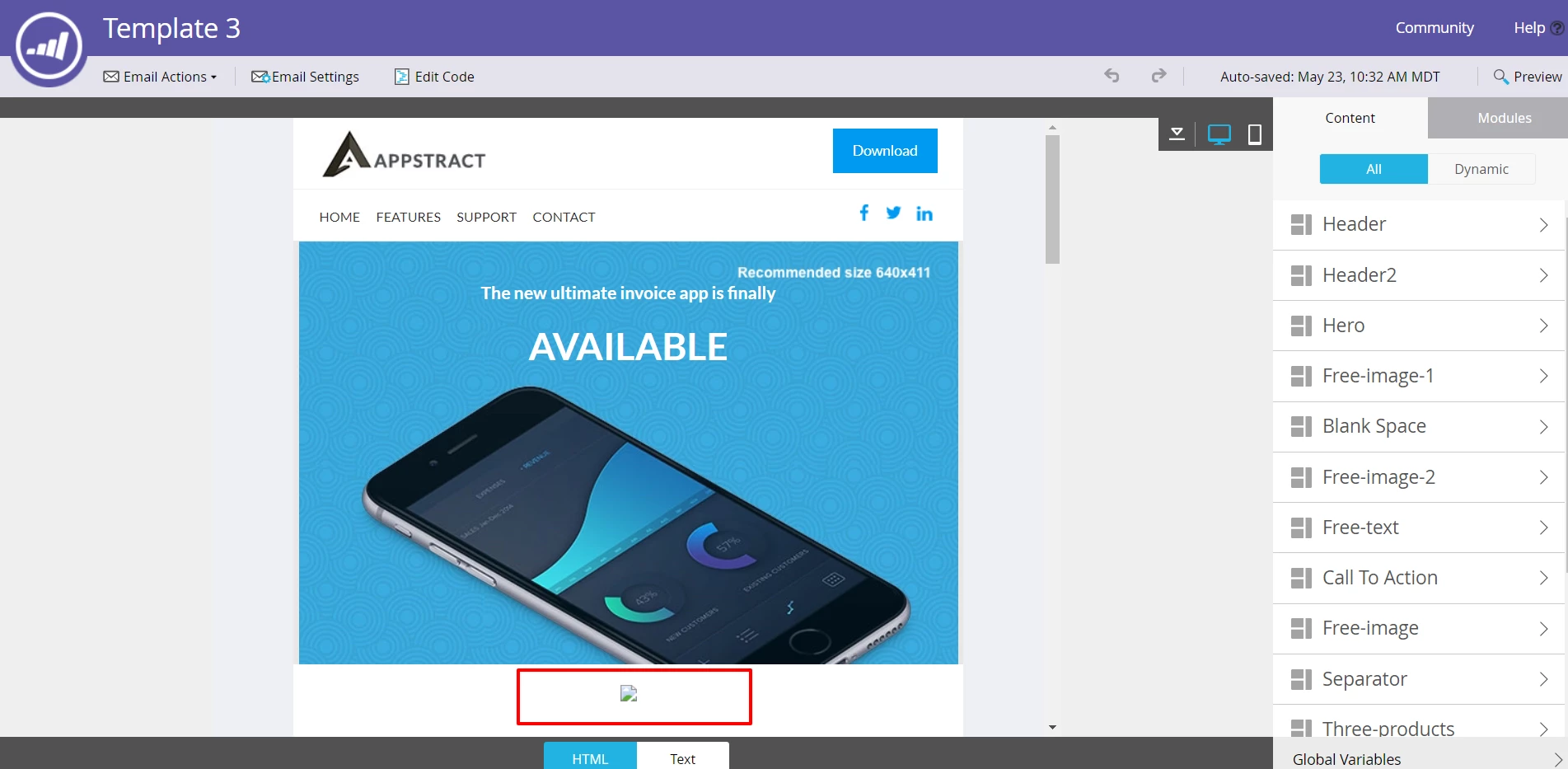
When I attempt to add an image from our Design Studio library to a template, it does not actually appear in the email editor. Below is a screenshot, and the red box indicates where the photo should be appearing. Instead I get a broken image icon.

When a sample email is sent, the image loads just fine. If I call in the image from an outside URL it will appear in the editor just fine. Does anyone have any experience with this? Candidly, I am new to the email editor and may be missing a setting somewhere. The image name is all one word, and is a .jpg.

I am using the most recent version of Chrome, and I replicated the issue in IE, and on other computers.
This post is no longer active and is closed to new replies. Need help? Start a new post to ask your question.
Best answer by

I was able to make Design Studio images appear in the editor by adding an 's' to the end of http.

1 reply

Accepted solution
May 24, 2018

I was able to make Design Studio images appear in the editor by adding an 's' to the end of http.

July 17, 2018

In my case, I was able to fix this by REMOVING the "s" from http. Wow, what an embarrassing bug for Marketo.

Grégoire_Miche2
New Participant
July 17, 2018

It is not necessarily a bug, it might simply be linked to information security in your browser. When you connect to Marketo and edit an email, you are in a secure (https) environment. Your bowser might refuse to display images coming from a non secure storage (such as Marketo itself, if you instance is not secured). You can change this in your browser settings.

-Greg