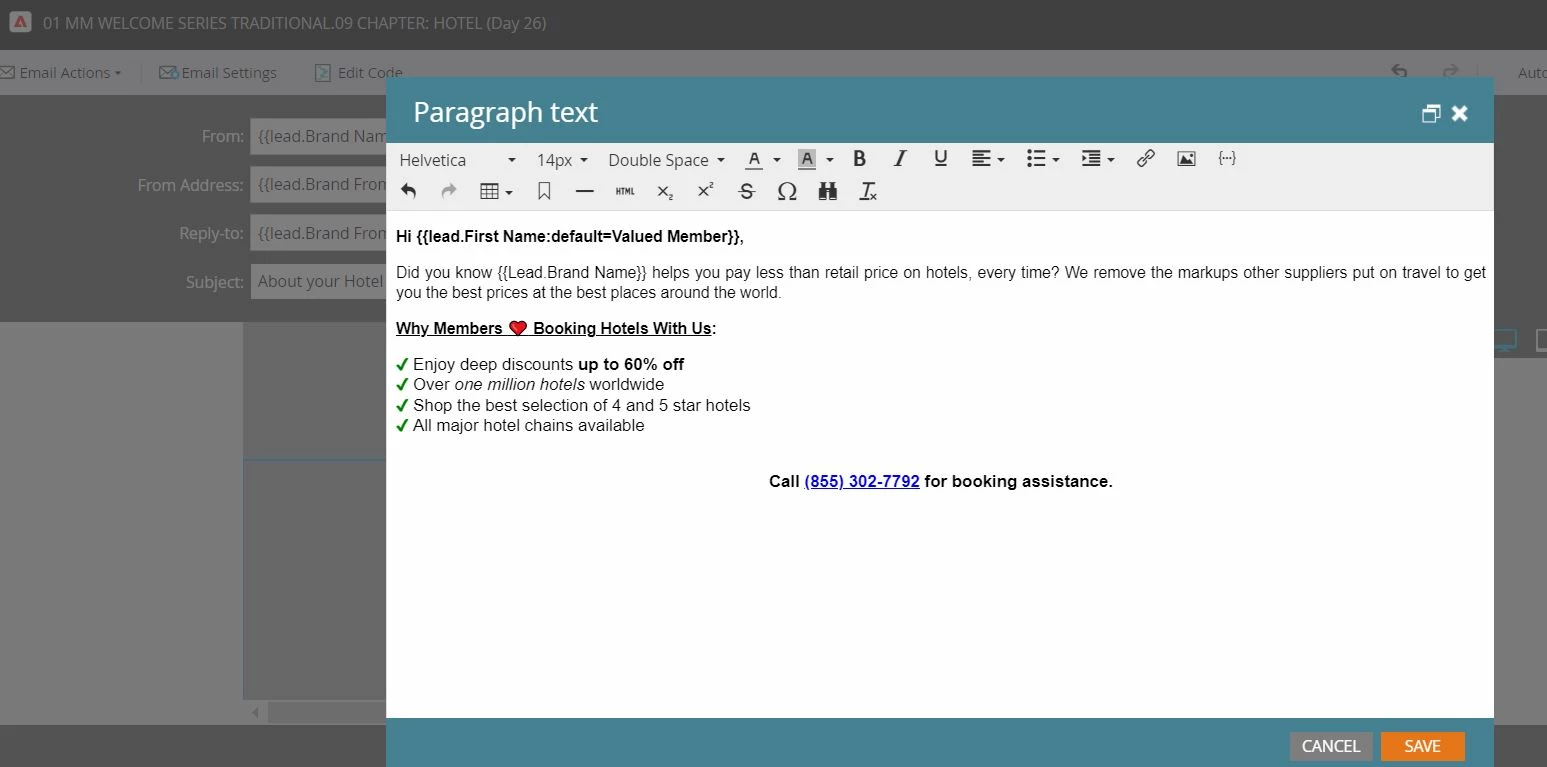
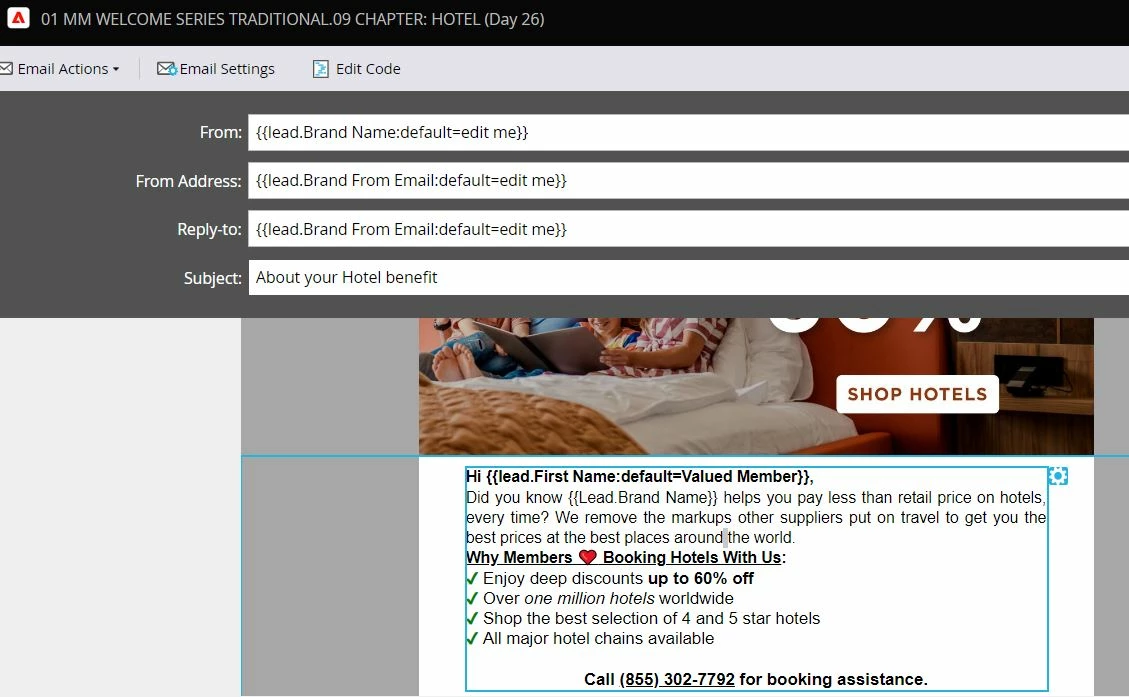
This looks like someone copy/pasted text from another source into the Rich Text Editor (rather than using the "paste as plain text" option). Anytime you see "widows: ___" in the CSS, that's my clue that something's not setup right. Basically, Marketo tries to help you out by preserving the CSS from the source you copy from when you paste text content into the Rich Text Editor. This usually looks like a string of styles that's four-to-five lines long -- and it's usually what's making things turn out wonky.
A part of the issue here is that the Rich Text Editor display you see in the editor panel is web-based and when you send an email it's not so there's an expected difference between "what you see" and "what you actually get" when working with the RTE.
The first few lines of the code look more like "normal" paragraphs:
<p style="text-align: left;"><span style="color: #000000; font-size: 14px;"><strong>Hi {{lead.First Name:default=Valued Member}},</strong></span></p>
<p style="text-align: left;"><span style="font-size: 14px; color: #000000;">Explore everywhere from far-off cities to close-to-home destinations with the ease of a guided tour. Enjoy specially curated itineraries sure to please people of all ages, activity levels and group sizes!</span></p>
<p style="text-align: left;"><span style="font-size: 14px; color: #000000;"><strong><span style="text-decoration: underline;">Why Our Members Tours</span>:</strong></span></p>
... but then after that it gets a little wild...
<p style="text-align: left;">
<span style="font-size: 14px; color: #000000;">
<span style="color: #000000; text-align: left;">
<strong style="color: #000000; font-family: Helvetica, Arial, sans-serif; font-size: 14px; font-style: normal; font-variant-ligatures: normal; font-variant-caps: normal; letter-spacing: normal; orphans: 2; text-align: left; text-indent: 0px; text-transform: none; white-space: normal; widows: 2; word-spacing: 0px; -webkit-text-stroke-width: 0px; background-color: #ffffff; text-decoration-thickness: initial; text-decoration-style: initial; text-decoration-color: initial;">
<b style="color: #303030; font-family: Helvetica, Arial, sans-serif; font-size: 14px; font-style: normal; font-variant-ligatures: normal; font-variant-caps: normal; letter-spacing: normal; orphans: 2; text-align: left; text-indent: 0px; text-transform: none; white-space: normal; widows: 2; word-spacing: 0px; -webkit-text-stroke-width: 0px; background-color: #ffffff;">
<strong style="color: #303030; font-family: Helvetica, Arial, sans-serif; font-size: 14px; font-style: normal; font-variant-ligatures: normal; font-variant-caps: normal; letter-spacing: normal; orphans: 2; text-align: left; text-indent: 0px; text-transform: none; white-space: normal; widows: 2; word-spacing: 0px; -webkit-text-stroke-width: 0px; background-color: #ffffff;">
<span style="color: #008000; font-family: Helvetica, Arial, sans-serif; font-style: normal; font-variant-ligatures: normal; font-variant-caps: normal; font-weight: 400; letter-spacing: normal; orphans: 2; text-align: left; text-indent: 0px; text-transform: none; white-space: normal; widows: 2; word-spacing: 0px; -webkit-text-stroke-width: 0px; background-color: #ffffff; text-decoration-thickness: initial; text-decoration-style: initial; text-decoration-color: initial; float: none; display: inline !important;">
✔
</span>
</strong>
</b>
</strong>
Visit multiple bucket list destinations in one trip
</span>
<span style="color: #000000; text-align: left;"> </span>
<br style="color: #303030; font-family: Helvetica, Arial, sans-serif; font-size: 14px; font-style: normal; font-variant-ligatures: normal; font-variant-caps: normal; font-weight: 400; letter-spacing: normal; orphans: 2; text-align: left; text-indent: 0px; text-transform: none; white-space: normal; widows: 2; word-spacing: 0px; -webkit-text-stroke-width: 0px; background-color: #ffffff; text-decoration-thickness: initial; text-decoration-style: initial; text-decoration-color: initial;" /> ...
Above: I've added some line breaks between the elements to try and make this a bit more legible. You'll notice there is a TON of code here to represent:
✔ Visit multiple bucket list destinations in one trip
You'll notice that even the line break (<br>) is highly stylized and that's completely unnecessary -- that's another clue that something funky is going on with the code that you can pick up by looking at the actual HTML (because it'll look right in the RTE preview window b/c it's web-based).
SOLUTION(S):
✔ Remove all the noisy inline styling: Try taking out everything below the first couple of "normal" looking paragraphs and getting those setup more like the ones at the top (without all the inline styles). This might help to clear up the lack of double-spacing for you.
✔ Use the "paste as plain text" option: If you're ever going to paste text directly into the RTE window there, you'll always always always want to use the "paste as plain text" option (Ctrl+Shift+V on Chrome/PC - or right-click and find it in the menu on other browsers). This will basically omit the 4-5 extra lines of inline styling from the source (wherever you copied the text from) and just put in the actual letters. I normally recommend to users during training sessions to highlight everything except the first and last character in a line (for example a headline) and then use the "paste as plain text" option to replace everything in the middle. This will make sure you preserve the tags around the element and don't rip out any of the styling or classes, etc. After than you can easily delete the first and last character for much less chaotic editing experience.
To clean up the code, try opening the HTML editor and using this as a shell for your content:
<p style="text-align: left;color: #000000; font-size: 14px; line-height: 19px">
... add your paragraph content here ...
</p>
<p style="text-align: left;color: #000000; font-size: 14px; line-height: 19px">
... add another line of content here below the previous paragraph <br>
Use one break for a 'single space' <br>
<br>
and two breaks for a 'double space' ...
</p>