
Edit Email 2.0 Starter Template Footers | Community
Skip to main content
Kim_Gandy1
New Participant
January 20, 2017
Solved

Edit Email 2.0 Starter Template Footers

  • January 20, 2017
  • 3 replies
  • 3901 views

How can I edit Starter Template footers to match the standard/branded footer in My Templates? Currently all starter footers have editable text that varies per template, and I don't want my team having to edit this each time they create a new email asset with Starter Templates. 

Also, the unsubscribe link is not editable, but uses {{system.unsubscribelink}}, which is linked to the incorrect URL. Where can I edit the URL associated with {{system.unsubscribelink}} ?

This post is no longer active and is closed to new replies. Need help? Start a new post to ask your question.
Best answer by Jenna_Molby10

Hi Kim,

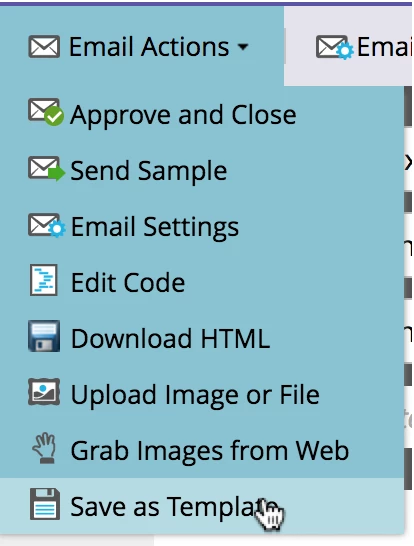
If you create a new email using one of the starter templates, then update the footer to include your custom unsubscribe, you can save that email as an email template (go to Email Actions > Save as Template). Then your users just have to use the new template when creating an email and they don't have to remember to update the footer every time.

3 replies

Grégoire_Miche2
New Participant
January 25, 2017
Jenna_Molby10
Jenna_Molby10Accepted solution
New Participant
January 20, 2017

Hi Kim,

If you create a new email using one of the starter templates, then update the footer to include your custom unsubscribe, you can save that email as an email template (go to Email Actions > Save as Template). Then your users just have to use the new template when creating an email and they don't have to remember to update the footer every time.

Jim_Thao7
New Participant
January 20, 2017

If your templates use the global unsubscribe that is automatically appended, then simply remove the code for the footer which contains the unsub token and then it will start to automatically append your global unsub link again.

If your templates use custom footer, then manipulate the template code to resemble what you have on your own templates.  

Every email comes with a template and the template is basically the parent so if you update the parent, the child should follow and if it does not, you will need to update it manually.