
How to create an invisible line-break token using Chrome Dev Tools
Resources:
- https://blog.teknkl.com/dark-mkto-alleys-line-break-token/ (Firefox tutorial)
- https://stackoverflow.com/questions/28775123/edit-and-replay-xhr-chrome-firefox-etc (Altering XHR request via Postman API Platform)
- https://www.postman.com/downloads/ (Postman API Platform download – Windows 64-bit) (recommend setting online account) (using online version in tutorial)
Step 1: Log in to Marketo and select the folder / program where you’d want this invisible line-break token to live (recommend for this to live in inherited tokens, or as high up as possible in folder hierarchy).
Step 2: Open Chrome Dev Tools (in the same tab that you have Marketo up in) by selecting the three vertical dots in far-right of your screen, select ‘More tools’, and selecting ‘Developer tools’ (you can also just hit CTRL+Shift+I).
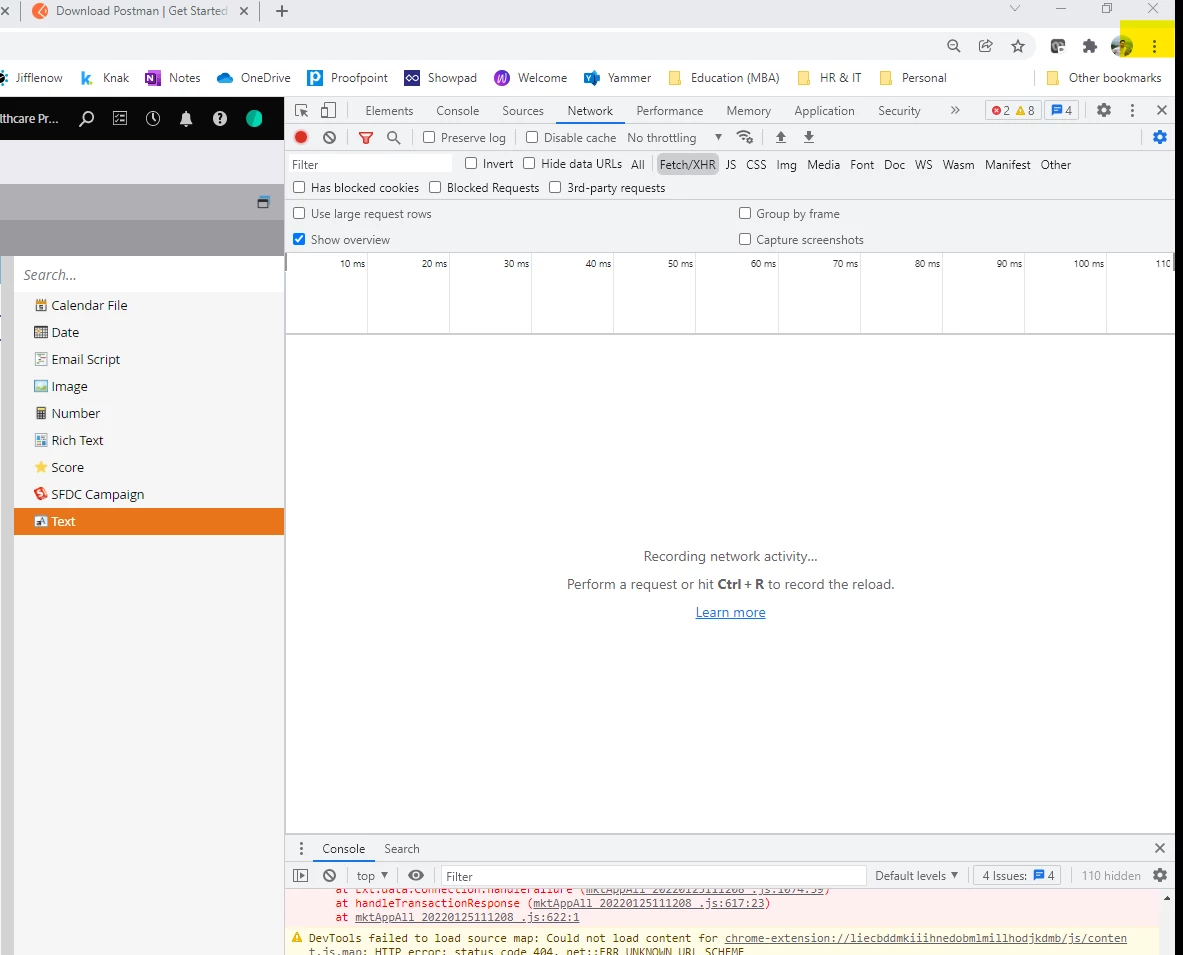
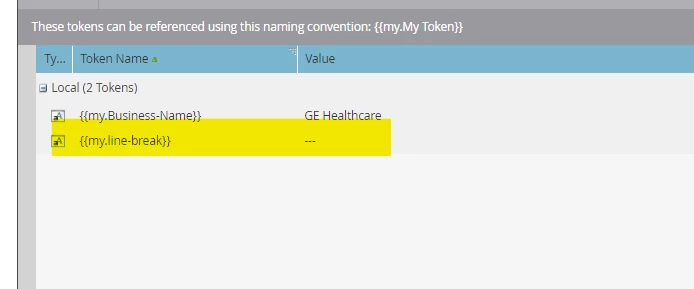
Step 3: Create a text token with name line-break and value three dashes “---“.
Step 4: Save the token.
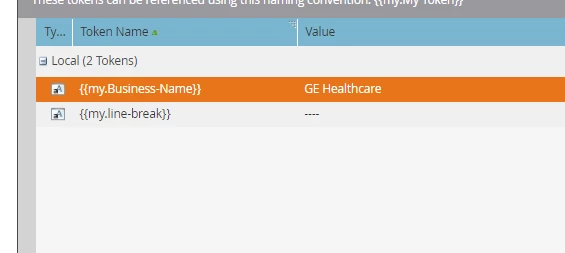
Step 5: Edit the token again. Change the value to four dashes “----“.
Step 6: Save the token again.
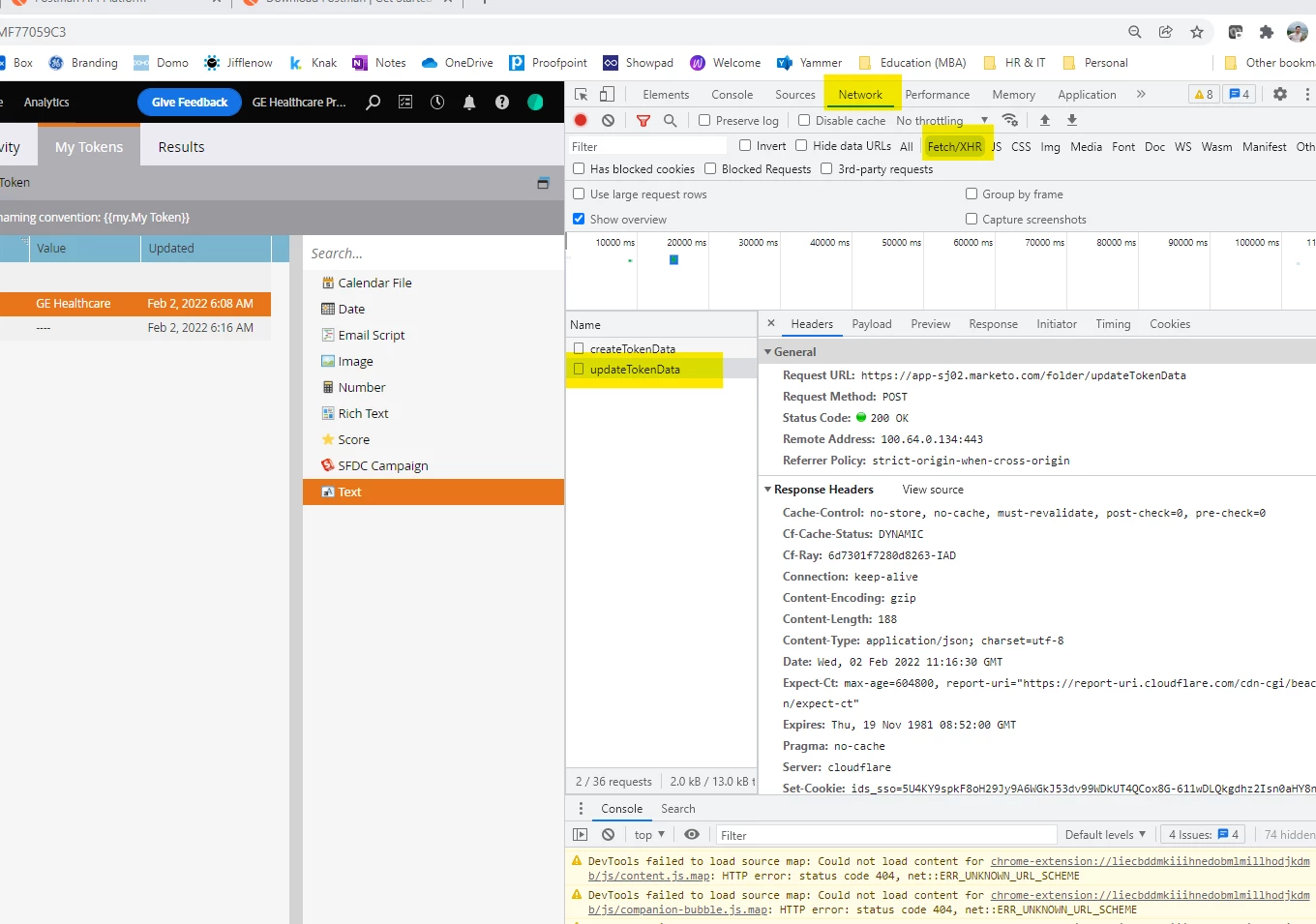
Step 7a: Select any other token so you aren’t selecting the {{my.line-break}} token. Do not edit or do anything else here, other than simply clicking on another token other than {{my.line-break}}.
Step 7b: Look back at the Chrome Dev Tools panel.
Step 8: Make sure you are under Network > Fetch/XHR (locate Name is updateTokenData).
Step 9: Right-click over updateTokenData > Copy > Copy as cURL (bash).
Step 10: Download Postman API Platform (using online version here), create an Account, and get to main Dashboard after account set-up.
Link to download app (desktop): https://www.postman.com/downloads/ (The Postman app > Windows 64-bit) (Personally, I avoid using the app since my company uses SSO and I’m using a personal email for Postman API Platform (online)).
Link to login page (online): https://www.postman.com/downloads/ (Postman on the web > Launch Postman > Create Account > Finish Account Creation > Homepage > Locate Workspaces > My Workspace).
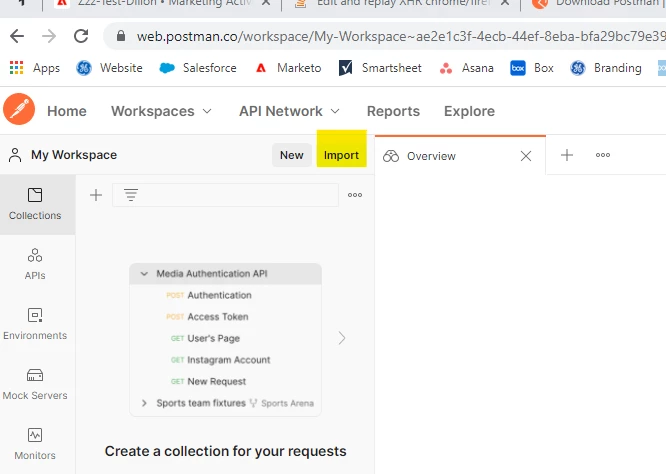
Step 11: Locate ‘Import’ within Postman API Platform.
Step 12: Locate ‘Raw text’ and past the cURL (bash) code here by hitting CTRL+V.
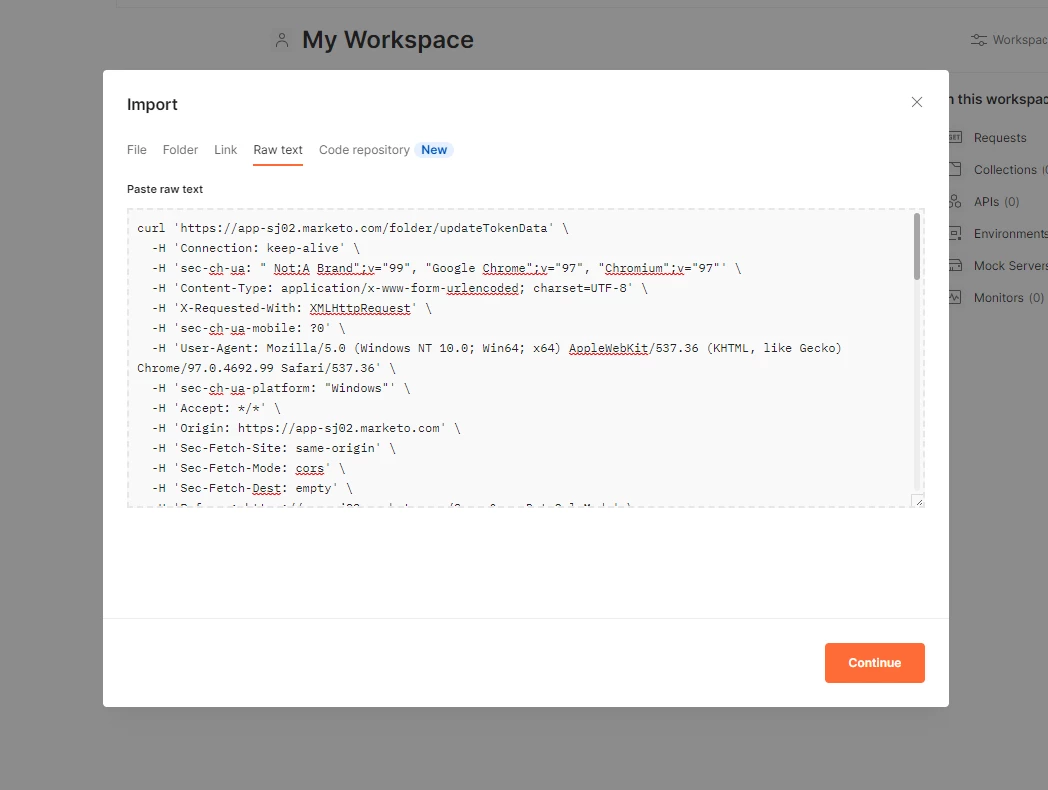
Step 13: Hit the Continue button.
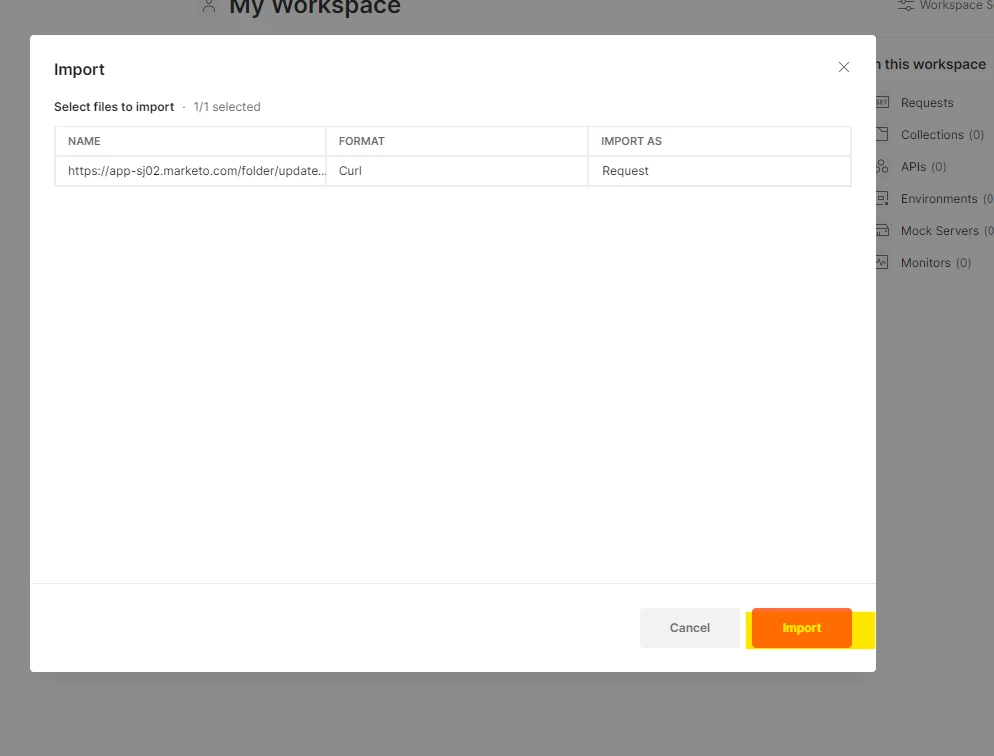
Step 14: Hit the Import button.
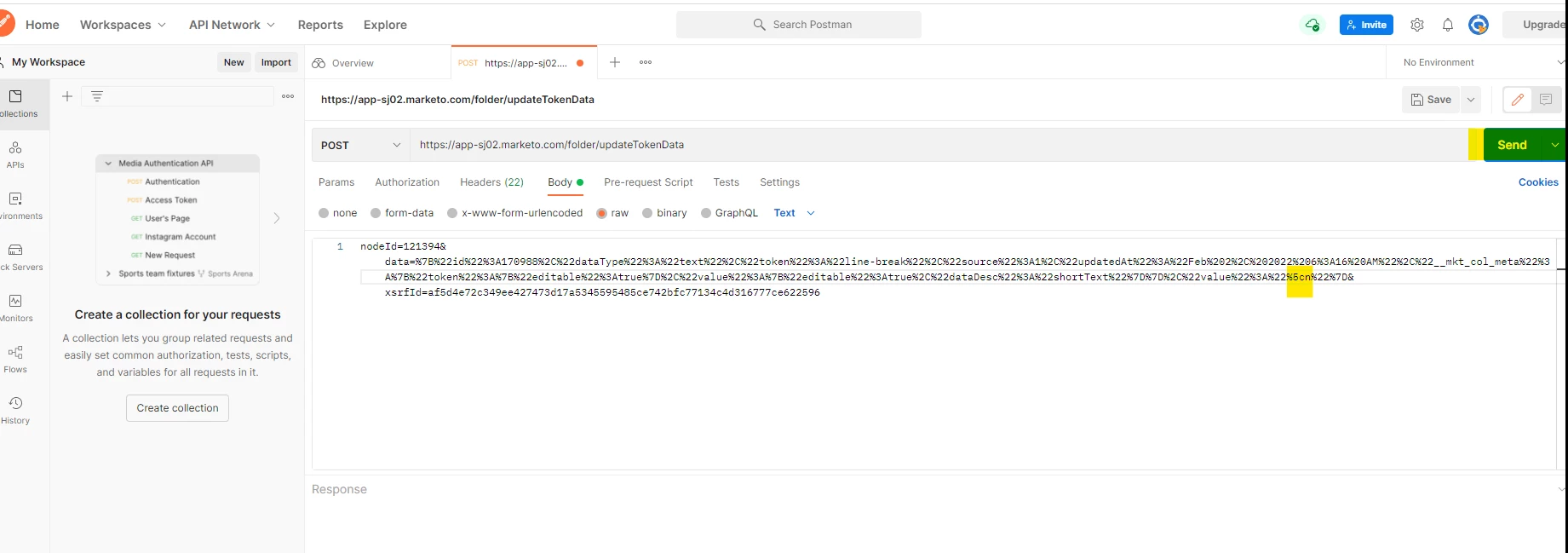
Step 15: Locate ‘Body’ and find the “----” text.
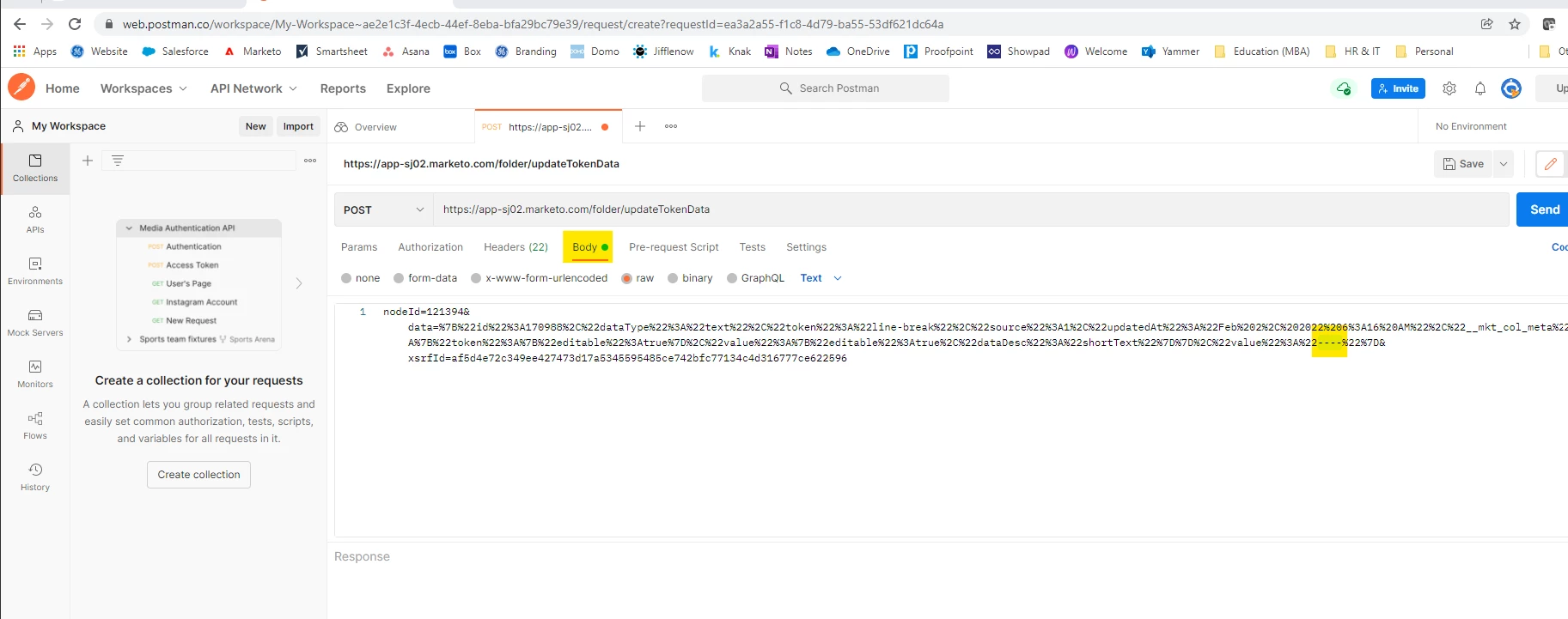
Step 16: Replace “----” text with “%5Cn” text.
Step 17: Hit the Send button.
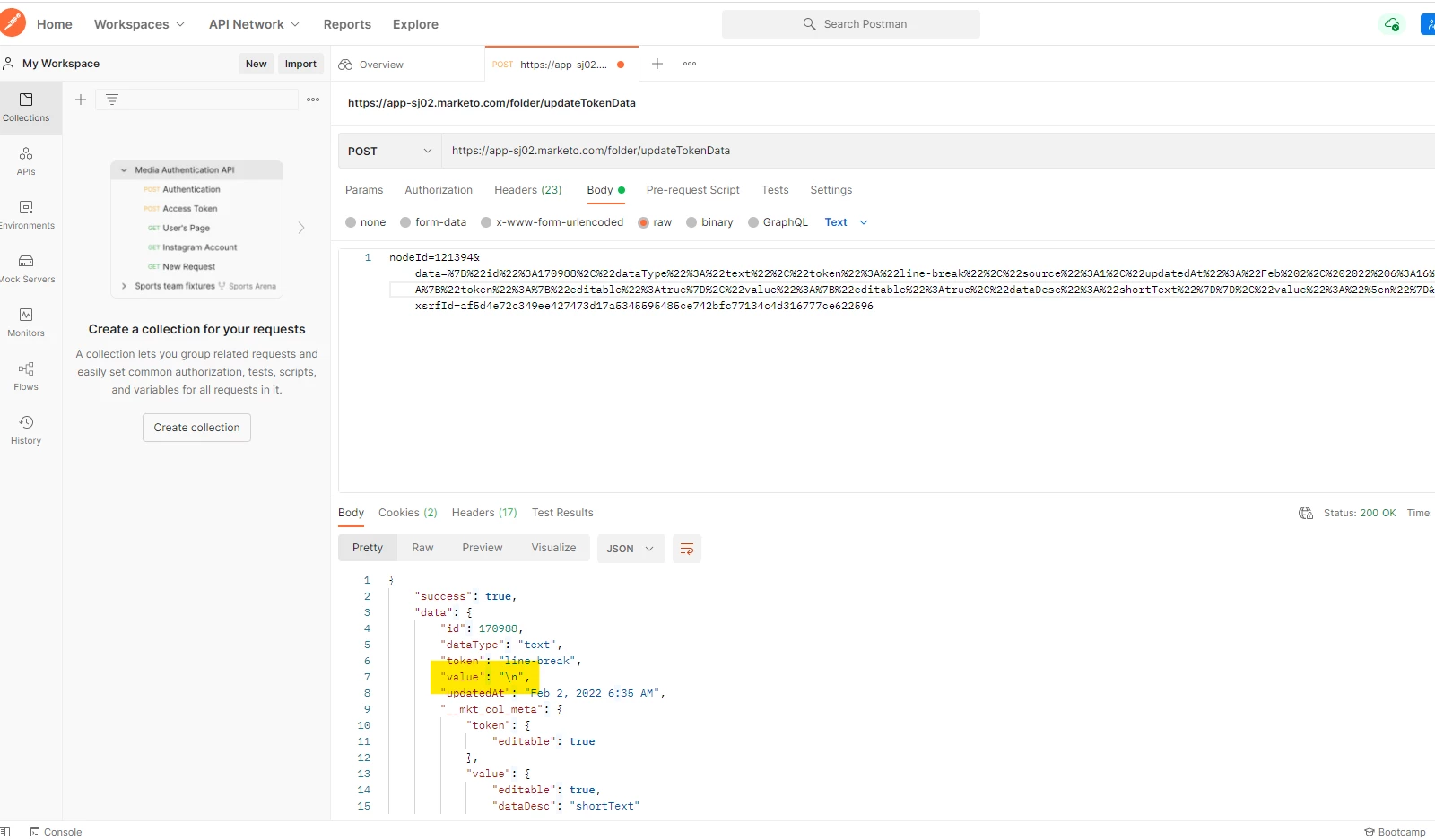
Step 18: Notice the new “value”: “\n”, at the bottom of your screen.
Step 19: Go back to the Marketo tab you have opened.
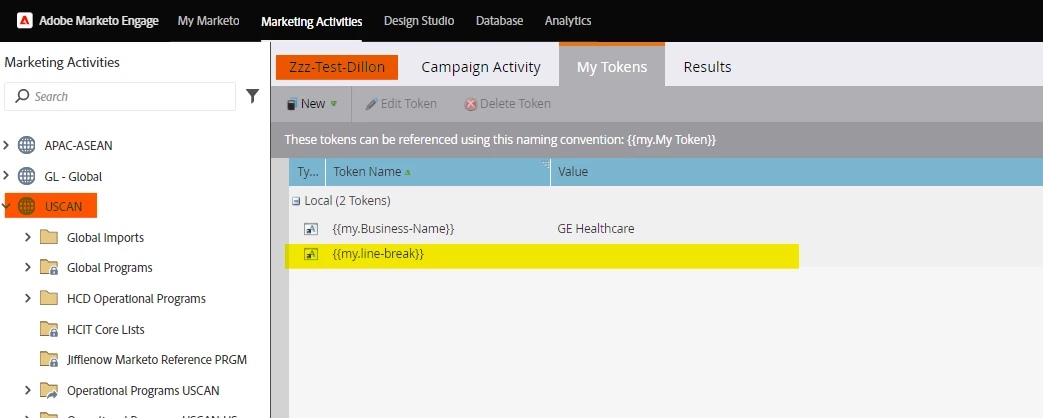
Step 20: Refresh the page and you should see the new invisible line-break token {{my.line-break}}.
- Value for {{my.line-break}} is equal to nothing (blank value)
- This will be good to use to write to a Description field within Salesforce (SFDC)
- Will help keep notes clean and not conglomerated together
- Can write token to flows for programs living underneath said folder where inherited token lives
- For example:
- USCAN Workspace (workspace) > Zzz-Test-Dillon (folder – where token lives) > program lives underneath > call inherited token to workflows
Big thank you to Sanford Whiteman’s article as a guide for how to do this in Firefox! Hopefully this will help you to be able to do this in Chrome.
Regards,
Dillon
CC: @sanfordwhiteman (credit)