List Upload with European letters | Community
Skip to main content
February 20, 2015
Solved

List Upload with European letters

  • February 20, 2015
  • 4 replies
  • 6217 views
Hello,
 
I am trying to do a list upload into Marketo.  We are currently using Marketo throughout our company in 9 different countries.  Whenever I upload a list that is in Swedish, Norweigan, German, or any country that has different characters or accents, the characters don’t come through and I have to manually go into ever record to update them.  Is there a way to upload a list where these characters can come through?

This post is no longer active and is closed to new replies. Need help? Start a new post to ask your question.
Best answer by Dan_Stevens_
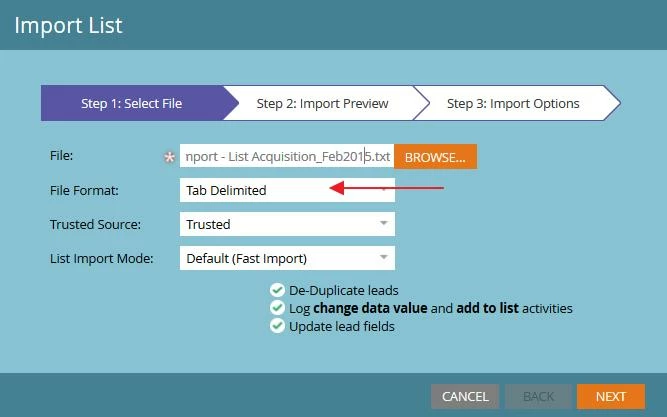
This is actually very simple.  Just save the Excel file as a Unicode Text file (instead of CSV).  During the import process, just make sure you select "tab delimitted" as the file format (in fact, you should ALWAYS select the appropriate file format regardless of the format).  Works perfectly every time.

4 replies

February 23, 2015
Thank you all for the help and guidance.  This worked perfectly.  Saving it in UTF 8 Format (UTF 16 for my mac) and uploading it with the tab delimited file format works great.  Thanks again!
December 9, 2015

Yes I confirm ! I've saved in UTF 16 and use the tab delimited file format. Thanx a lot !

Dan_Stevens_
Dan_Stevens_Accepted solution
New Participant
February 21, 2015
This is actually very simple.  Just save the Excel file as a Unicode Text file (instead of CSV).  During the import process, just make sure you select "tab delimitted" as the file format (in fact, you should ALWAYS select the appropriate file format regardless of the format).  Works perfectly every time.

Abaran
New Participant
May 25, 2016

Hi Dan

Unfortunately this is not working for me . I also tried the method describe on SFDC support page. Same issues

Axel

Dan_Stevens_
New Participant
May 25, 2016

Have a look at this recent idea: .  Is it possible you're experiencing these same issues?

Josh_Hill13
New Participant
February 20, 2015
Are you saving the CSV as UTF 8 format?  Try a couple of test leads and import them that way.
Casey_Grimes2
New Participant
February 20, 2015
Hi Michael,

The key to preserving special characters when doing list uploads is to make sure that your list is saved with UTF-8 formatting. Excel, by default, formats entries as Windows-1252, which results in the special characters you mention getting mangled.

Unfortunately, Excel doesn't offer an out-of-the-box option for writing UTF-8 CSVs, so you need a plugin like this, use software like OpenOffice/LibreOffice to make your lists, or do a Notepad workaround as described here.