Make label wrap with two column checkboxes | Community
Skip to main content
New Participant
July 23, 2021
Solved

Make label wrap with two column checkboxes

  • July 23, 2021
  • 3 replies
  • 9158 views

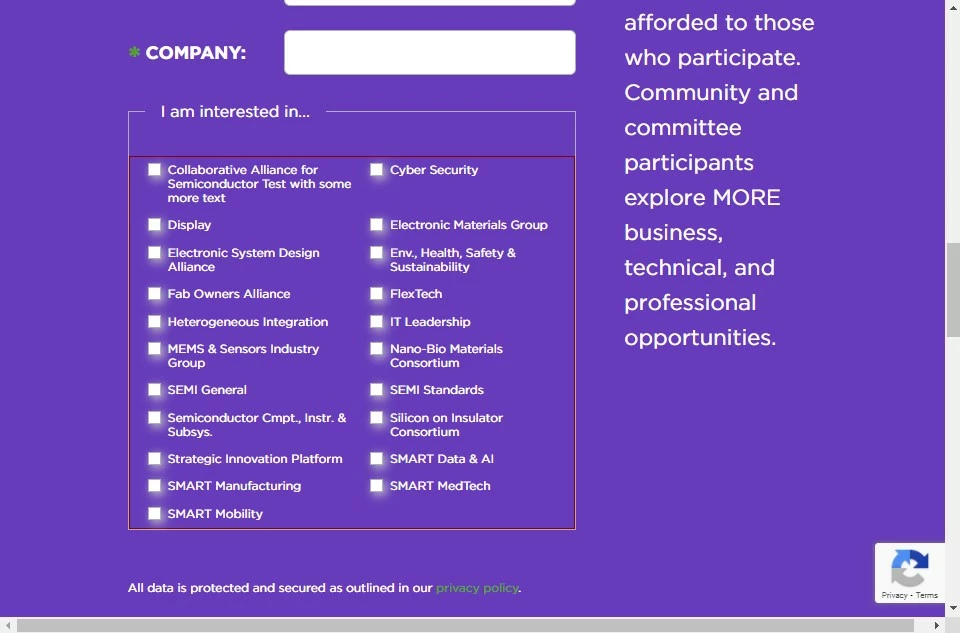
We are trying to figure out how to have a label for a checkboxes solution wrap onto the next line if the label is too long. Here is the current page: https://discover.semi.org/technology-communities-subscription-registration.html


You can see that the labels for checkboxes in the "I am interested in..." fieldset have significant problems. The fieldset has a single checkboxes field set up to be two columns. When the fieldset goes down to mobile size, it goes into 1 column but even then it can overflow the area. The team is currently limiting themselves on the length of the label so that it displays correct when the form is on a full width page, but this is less than ideal too. For instance the label "Semiconductor Cmpt., Instr. & Subsys." should really read "Semiconductor Components, Instruments and Subsystems" but that is way too long. 


Is there a way to automatically get the form to display by wrapping any labels that overflow? 


Thanks for your help!

Sheila


Best answer by Dave_Roberts

Hey Sheila,


It looks like the way this is coded it's kind of missing the "fluid" styles that it needs to take the shape of it's container as you resize from mobile to tablet and then desktop. 


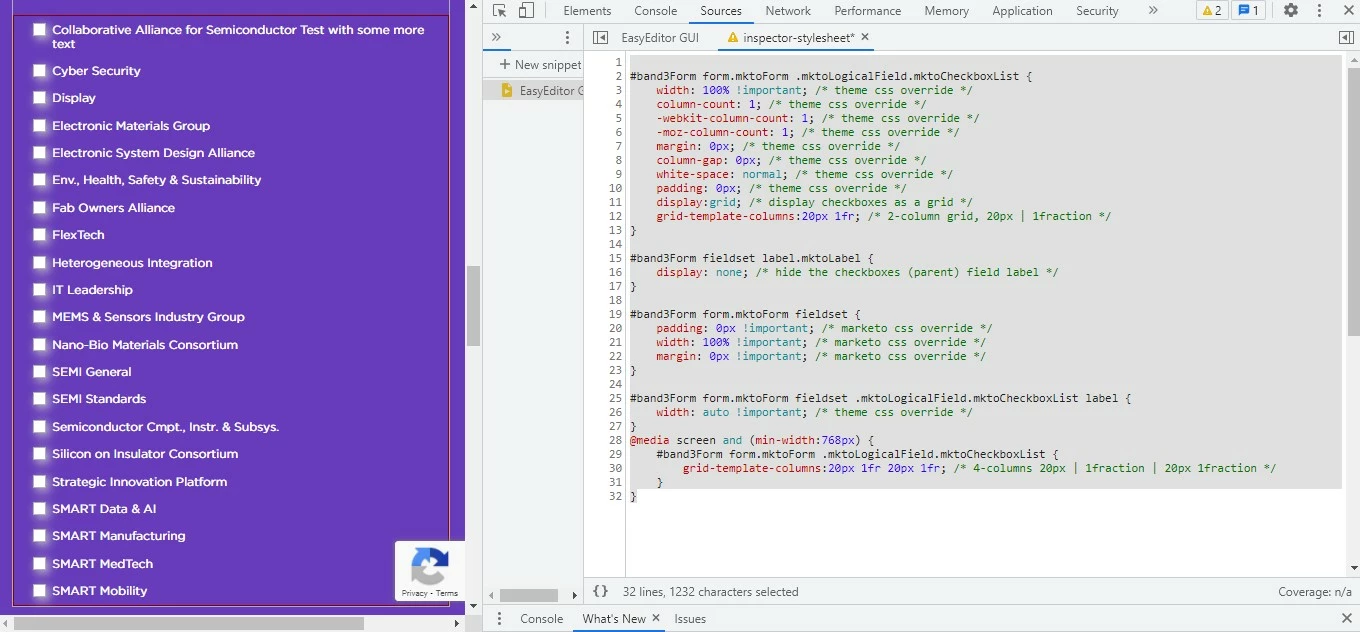
I've fiddled w/ some CSS in the inspector here which you could add to your form in the "Custom CSS" dialog box on pg2 of the form editor. This should help to override a few of the issues in the theme stylesheet as well as address a few things that come from Marketo that make this not-so-responsive in the first place.


Here's a look at what Im seeing on my end w/ this CSS applied:

Above: desktop view has a total of 4 grid columns: 20px 1fr 20px 1fr

Above: Tablet view also has 4 grid columns: 20px 1fr 20px 1fr
 

Above: mobile view has 2 grid columns: 20px 1fr


Here's a copy of the CSS I've used in the browser to get these results:

#band3Form form.mktoForm .mktoLogicalField.mktoCheckboxList { width: 100% !important; /* theme css override */ column-count: 1; /* theme css override */ -webkit-column-count: 1; /* theme css override */ -moz-column-count: 1; /* theme css override */ margin: 0px; /* theme css override */ column-gap: 0px; /* theme css override */ white-space: normal; /* theme css override */ padding: 0px; /* theme css override */ display:grid; /* display checkboxes as a grid */ grid-template-columns:20px 1fr; /* 2-column grid, 20px | 1fraction */ } #band3Form fieldset label.mktoLabel { display: none; /* hide the checkboxes (parent) field label */ } #band3Form form.mktoForm fieldset { padding: 0px !important; /* marketo css override */ width: 100% !important; /* marketo css override */ margin: 0px !important; /* marketo css override */ } #band3Form form.mktoForm fieldset .mktoLogicalField.mktoCheckboxList label { width: auto !important; /* theme css override */ } @media screen and (min-width:768px) { #band3Form form.mktoForm .mktoLogicalField.mktoCheckboxList { grid-template-columns:20px 1fr 20px 1fr; /* 4-columns 20px | 1fraction | 20px 1fraction */ } }

 Let me know if you've got any questions about why what you had in there wasn't working or how any of this is working differently than it was before.


Thanks,
Dave

3 replies

Dave_Roberts
Dave_RobertsAccepted solution
New Participant
July 23, 2021

Hey Sheila,


It looks like the way this is coded it's kind of missing the "fluid" styles that it needs to take the shape of it's container as you resize from mobile to tablet and then desktop. 


I've fiddled w/ some CSS in the inspector here which you could add to your form in the "Custom CSS" dialog box on pg2 of the form editor. This should help to override a few of the issues in the theme stylesheet as well as address a few things that come from Marketo that make this not-so-responsive in the first place.


Here's a look at what Im seeing on my end w/ this CSS applied:

Above: desktop view has a total of 4 grid columns: 20px 1fr 20px 1fr


Above: Tablet view also has 4 grid columns: 20px 1fr 20px 1fr


Above: mobile view has 2 grid columns: 20px 1fr


Here's a copy of the CSS I've used in the browser to get these results:

#band3Form form.mktoForm .mktoLogicalField.mktoCheckboxList { width: 100% !important; /* theme css override */ column-count: 1; /* theme css override */ -webkit-column-count: 1; /* theme css override */ -moz-column-count: 1; /* theme css override */ margin: 0px; /* theme css override */ column-gap: 0px; /* theme css override */ white-space: normal; /* theme css override */ padding: 0px; /* theme css override */ display:grid; /* display checkboxes as a grid */ grid-template-columns:20px 1fr; /* 2-column grid, 20px | 1fraction */ } #band3Form fieldset label.mktoLabel { display: none; /* hide the checkboxes (parent) field label */ } #band3Form form.mktoForm fieldset { padding: 0px !important; /* marketo css override */ width: 100% !important; /* marketo css override */ margin: 0px !important; /* marketo css override */ } #band3Form form.mktoForm fieldset .mktoLogicalField.mktoCheckboxList label { width: auto !important; /* theme css override */ } @media screen and (min-width:768px) { #band3Form form.mktoForm .mktoLogicalField.mktoCheckboxList { grid-template-columns:20px 1fr 20px 1fr; /* 4-columns 20px | 1fraction | 20px 1fraction */ } }

 Let me know if you've got any questions about why what you had in there wasn't working or how any of this is working differently than it was before.


Thanks,
Dave

New Participant
July 27, 2021

@Dave_Roberts 

I can't thank you enough for helping with this! It is looking so much better than it was before. You can see it implemented here:

https://discover.semi.org/LP-Test-Form.html


The only thing I tweaked was to match the top and bottom margins of the checkboxes in the fieldset area. 

Thank you, thank you, thank you!!  

New Participant
July 27, 2021

@dave_roberts - I just realized there is another issue on the form... I am trying to figure out how to fix... but if you have some suggestions I would appreciate it... I've tried somethings but my CSS skills are just not up to it.


If you select a opt-in country (Austria, Canada, UK, etc..) there is another checkbox for "Email Opt-In" that appears under the field set.  You'll see that the checkbox is appearing over the Email Opt-in label. I can see using dev tools, that if I can add a "padding-left: 175px;" to the element "<label for="mktoOptIn" id="LblmktoOptIn"> that I can get the checkbox to line up... but I can't figure out how to write the CSS to do that. Would you be able to help me with this? 


Thanks again!

Vinay_Kumar
Community Manager
July 23, 2021

@sheila-semi, There are issues in the CSS and you need to work on fixing those issues. You also need to remove the white-space in CSS.


Try updating 480 media Query CSS with the below-mentioned code:


fieldset .mktoLogicalField.mktoCheckboxList {
white-space: unset;
margin-left: unset;
}
#band3Form .mktoCheckboxList label {
width: 100% !important;
}
#band3Form .mktoForm input[type="checkbox"] {
width: unset !important;
}
#band3Form .mktoForm label {
font-size: 14px !important;
line-height: 22px !important;
}
.mktoForm input[type=checkbox] + label:before, .mktoForm input[type=radio] + label:before {
margin-top: 4px;
}


Hope this helps!

New Participant
July 23, 2021

Hi Sheila,


There is a CSS issue on the form, the developer has added some odd styles which is resulting in the issue. Let us know if the issue doesn't get fixed.


Thanks,

Monali