Mandatory image height in Email Editor 2.0 results in distorted images | Community
Skip to main content
August 15, 2016
Solved

Mandatory image height in Email Editor 2.0 results in distorted images

  • August 15, 2016
  • 1 reply
  • 7707 views

I have noticed that when you edit an image in Email Editor 2.0, it forces you to enter a height value for every image. (Using the editor 2.0 syntax, I am using the div method, i.e. using div class="mktoImg" with an image tag inside.)

When you edit the image in the editor, if you try to leave the height field blank, you get a validation error and can't save your image:
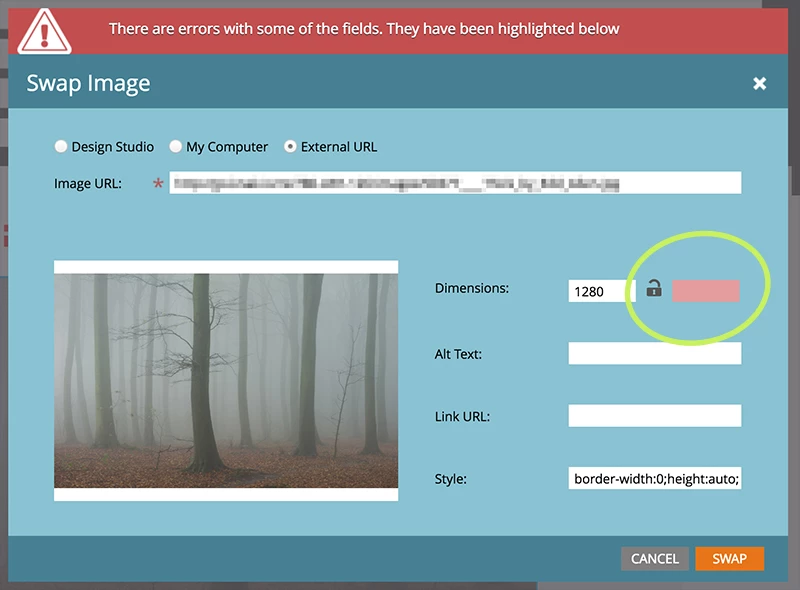
In the old email editor, you were able to leave the height field blank so that the HTML height="xx" attribute would not be added to your image/s. This was perfect because it allowed you to have fluid templates where all images resized proportionally.

Forcing a fixed height to be added to images is a problem for fluid templates because images will become distorted like the example below left.
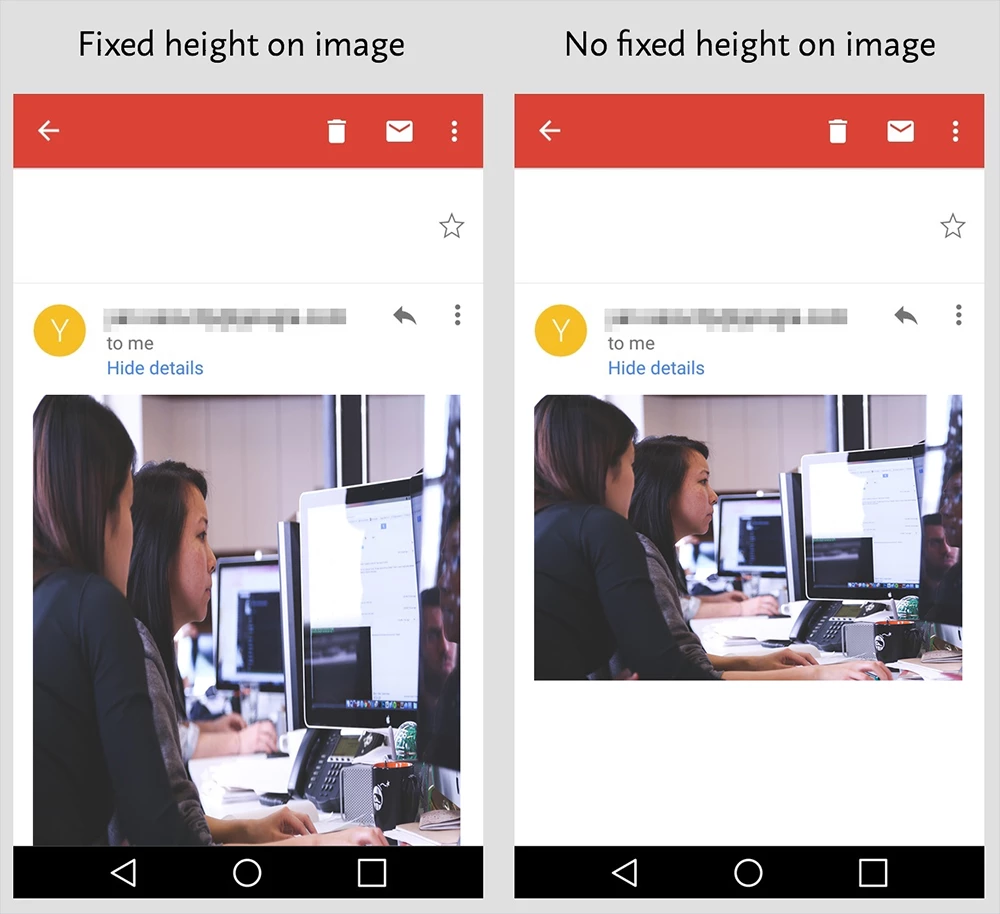
This is particularly a problem in Gmail because you cannot override the HTML height attribute with height:auto. Gmail's CSS pre-processor changes every instance of CSS height to min-height, rendering it useless against an HTML height attribute. It cannot override it.

Could this be fixed so that the height is optional, like it used to be in editor 1.0? Otherwise it severely limits the types of templates that can be added for use.

If it is optional, it should be able to keep everyone happy

This post is no longer active and is closed to new replies. Need help? Start a new post to ask your question.
Best answer by Justin_Cooperm2

Hi @Justin Cooperman​,

Will the Summer 23' "mktoLockImgSize" require that we set the height of images or can we let the height to auto?

-Greg


By default, height and width will be locked unless you explicitly say mktoLockImgSize="false". If you have omitted "height" or "width" in your template then it will be lock as empty and will not add it in. It will lock it exactly the way you've specified it in your template.

1 reply

Frank_Breen2
New Participant
August 19, 2016

You have to put some sort of number in there, then you have to edit the raw code to put a fix in (as long as you are only editing within the editable region, it won't break it from the Email Template, a Email 2.0 only feature).

  1. Add the image as normal
  2. Click Edit Code at top
  3. Find your image and remove the hard code width and height

N.B. You may need to tweak the inline css too.

The image should now behave as you expect.

August 21, 2016

Thanks Frank. That is certainly easy for me to do, as I am an email developer, but definitely isn't something that our customers will find easy to do. It's a shame because the old email editor didn't require a number in the height field, so I'm confused as to why this extra restriction has been added.

Grégoire_Miche2
New Participant
August 22, 2016

Hi Nicole Merlin ,

You can fix this with a css "height:auto" style in the img tag that will apply and override the html properties on all clients excepted outlook. The advantage is that you can set it at the template level.

If you use an <img class="mktoImg"> just add the style to the <img>

If you use a <div class="mktoImg">, add an <img>  with the style inside.

-Greg