Sending an SMS using Twilio | Community
Skip to main content
John_M
Employee
July 8, 2015

Sending an SMS using Twilio

  • July 8, 2015
  • 14 replies
  • 15403 views

Webhooks are a great way for Marketo to interact with external systems and interfaces.  Common use cases include leveraging 3rd party interfaces for de duplication, to enrich lead data, and to send SMS messages. Here's an example of doing the latter leveraging Twilio, a Launchpoint partner of Marketo. The documentation for sending SMS messages for Twilio is also available.

Side note: Launchpoint is a thriving ecosystem of corporate partners that are actively developing solutions that complement the Marketo Platform. It's worth a look!

First...sign up for a Twilio account, taking note of your authentication token, you'll need that for sending your SMS.

Next up, create your webhook. Head over to Admin --> Integration --> Webhooks and click "new"
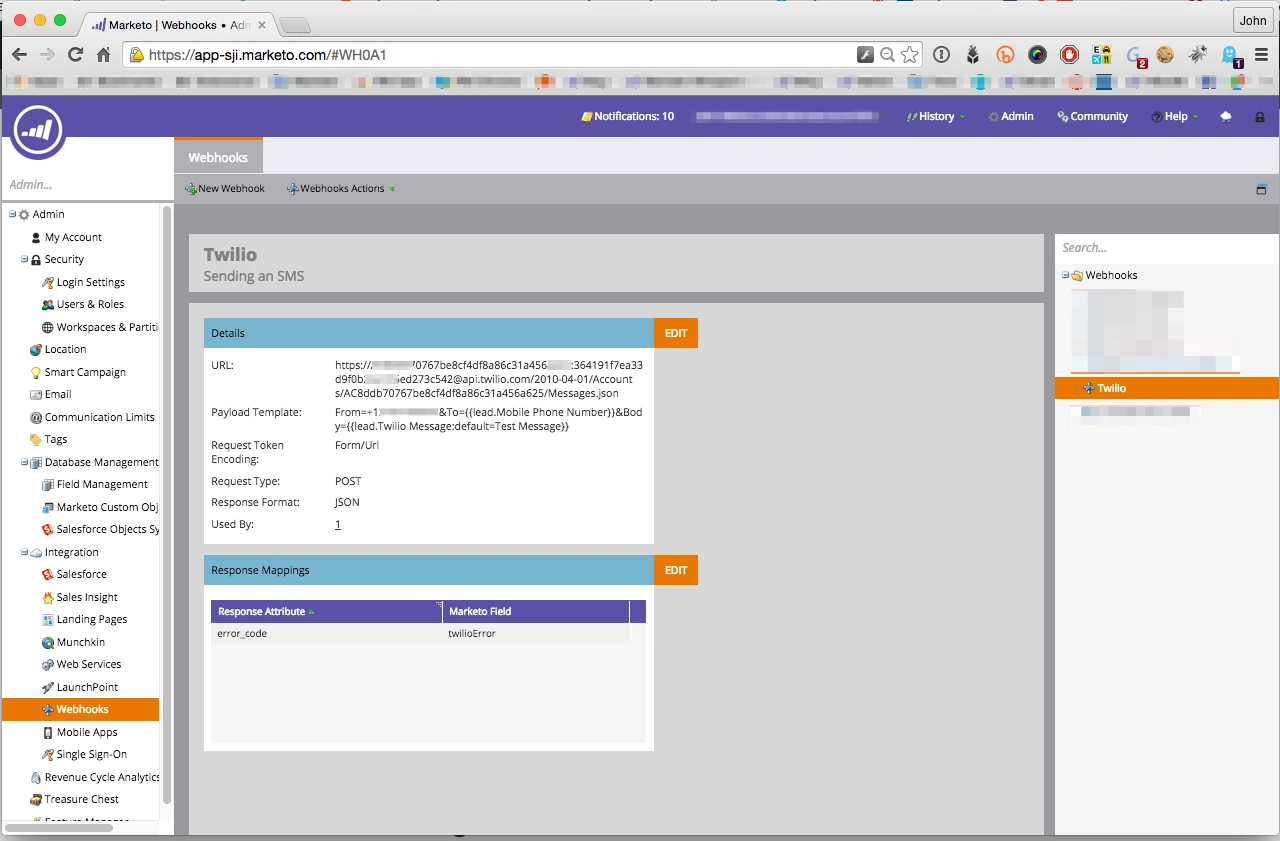
Webhook Name: Twilio Webhook

Description: Send an SMS

URL: %AccountSID%:%AuthToken%@api.twilio.com/2010-04-01/Accounts/%%AuthToken%@api.twilio.com/2010-04-01/Accounts/%AccountSID%/Messages.json (note you'll have to replace "Account SID" and "AuthToken" with the values from your Twilio Account

Request Type: POST

Template: From=%Your Send Number%&To={{lead.Mobile Phone Number}}&Body={{lead.Twilio Message:default=Test Message}}

Request Token Encoding: jSON

Response Type: None

Notes

     You'll need to put in your own Account SID and Auth Token

     You'll need to procure a Twilio Phone number to send from

     I also added a response mapping, as you can see of the "error_code" into the "twilioError" (API name) field. More on this later.

Once you have your Webhook set up, you have access and use it in your campaigns! In my example, I've set up a simple form on a Marketo Landing Page (both responsive and standard) that accepts First Name, Last Name, Email, Mobile Phone Number, and asks for a Message (limited to 255 characters). The lead is submitted to Marketo, the following data is updated or inserted

First Name

Last Name

Email Address

Mobile Number

SMS Message - a new string custom field on the Marketo Lead called "Twilio Message"

Error - a new string custom field on the Marketo Lead called Twilio Error

The Form and the Marketo Landing Page

I created a simple Form soliciting the above information (except Twilio Error, obviously), all of which are required, and put that form on a landing page. It looks like this:

The Campaign

Then we can create a simple campaign that is triggered off of the form being submitted, and then simply calls the webhook.

The Campaign Smart List

The Campaign Flow:

Once you've got all of that in place, submit the form, and youll see that SMS come through.

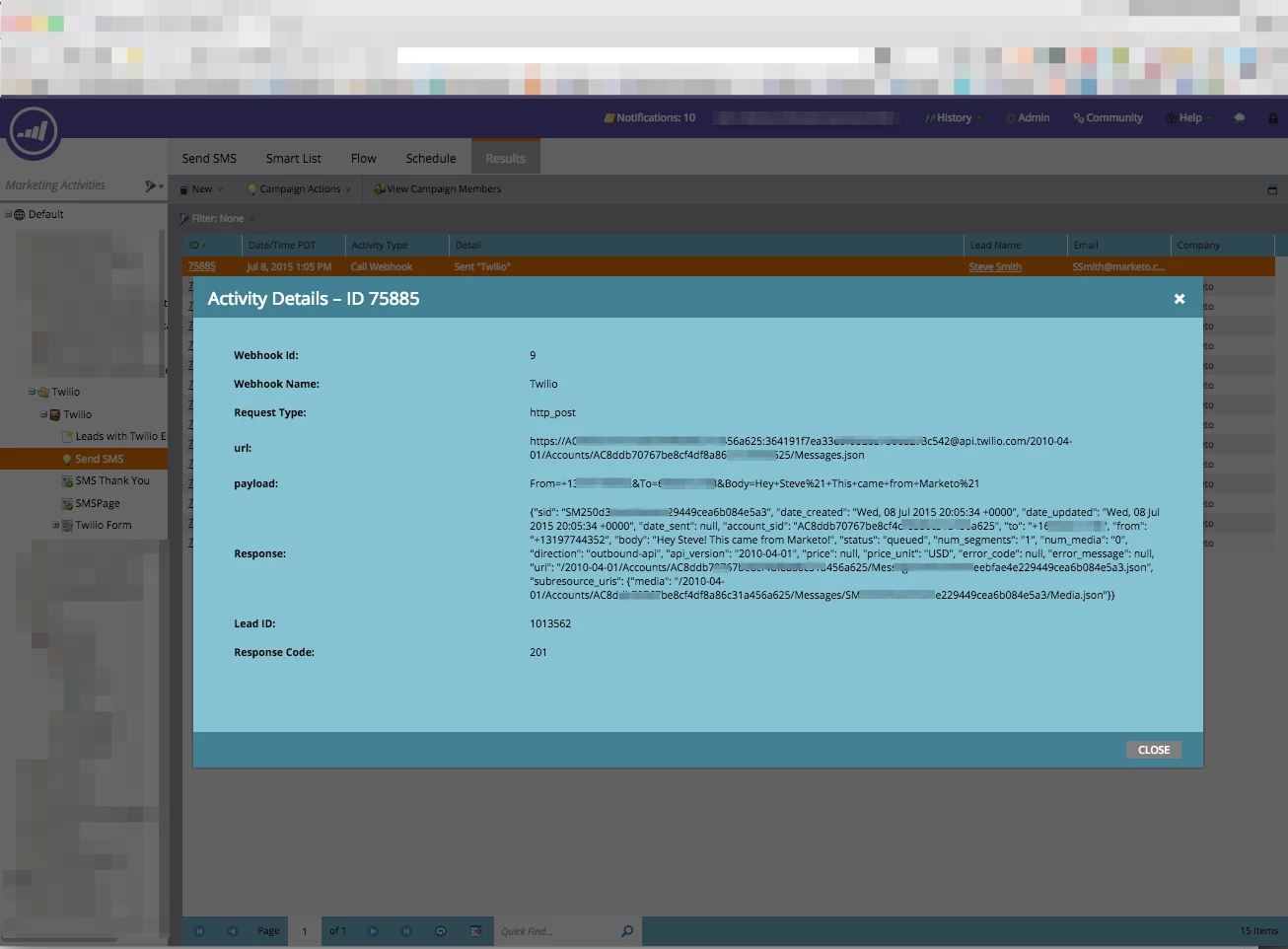
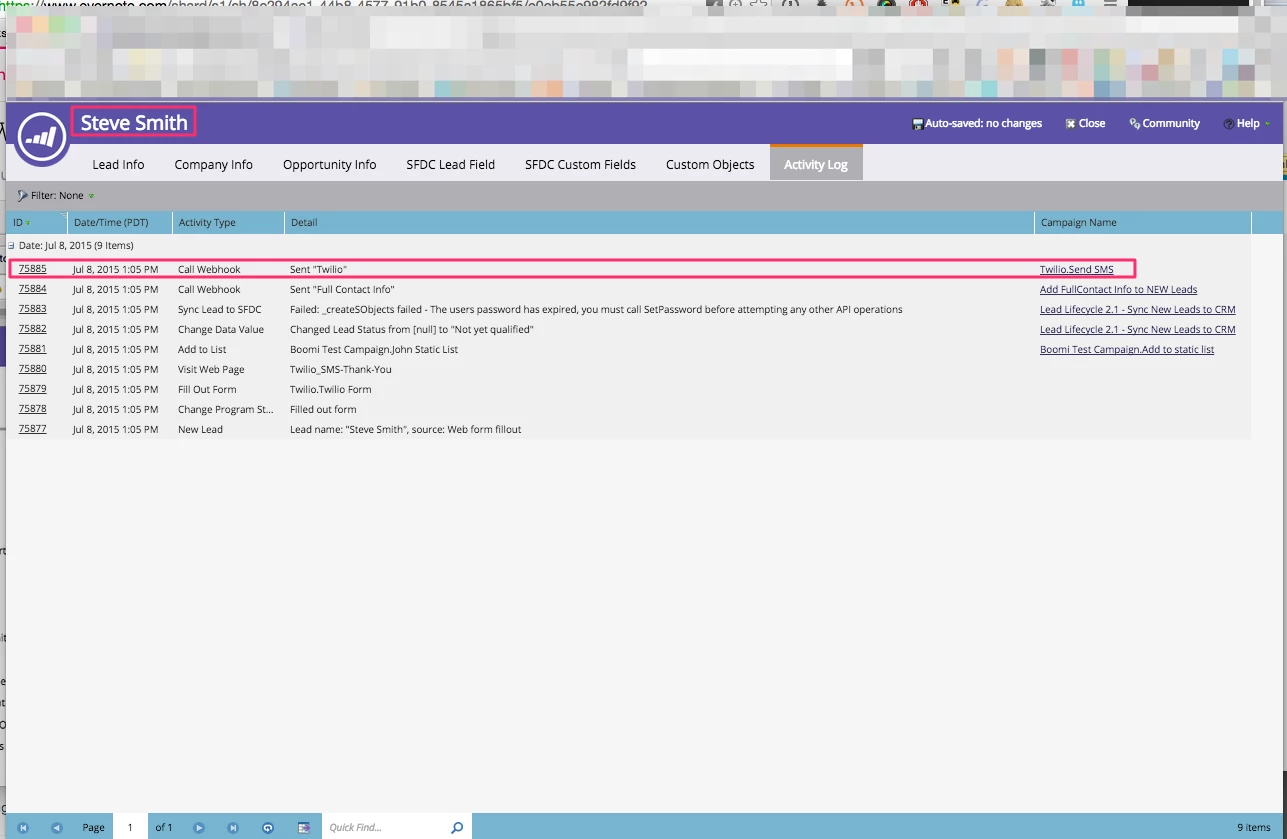
You can verify the SMS was sent in two places

1. The results tab of the campaign
2. The Lead Details Activity Tab
Bonus round

Sometimes the SMS may fail, and you may want to monitor for that. To do that, You can create a simple campaign trigging off the value changed of the "Twilio Error" field where the new value is not null. For the flow step, you can send an alert anywhere you like.. to an admin a distribution list.. wherever.

Cool, right?

14 replies

JeffHensiek
New Participant
October 5, 2023

Thank you, @jnkrochman and @tyronpr for your feedback on how to configure these items.  I appreciate it.  

Jeff HensiekMarketing Automation Program Manager
New Participant
September 11, 2023

@jeffhensiek @tyronpr 

Following up on what Tyron shared. Here is an example we use for a similar use case:


{ 'text': '{{lead.Full Name:default=edit me}}\n{{lead.Record ID URL:default=edit me}}\nPhone: {{lead.Mobile Phone Number:default=edit me}}\nEmail: {{lead.Email Address:default=edit me}}' }


For your purpose, on trigger campaign of new lead creation call webhook. In the webhook it would look something like this:
From=[Insert from number or messaging SID]To=[Insert To Number]&Body=Name: {{lead.Full Name:default=edit me}}\nRecord ID: {{lead.Record ID URL:default=edit me}}\nPhone: {{lead.Mobile Phone Number:default=edit me}}\nEmail: {{lead.Email Address:default=edit me}}

If in the program you wanted to make it more variable, I believe you could also put that into a token and simply call the token you want, but I have not tested this.
Webhook:

From=[Insert from number or messaging SID]To=[To Number]&Body={{my.SMS Lead Info}}

Token:

{{my.SMS Lead Info}} = "Name: {{lead.Full Name:default=edit me}}\nRecord ID: {{lead.Record ID URL:default=edit me}}\nPhone: {{lead.Mobile Phone Number:default=edit me}}\nEmail: {{lead.Email Address:default=edit me}}"

New Participant
September 11, 2023

@jeffhensiek 


"Also, any suggestions on creating SMS notifications that include lead/contact info" you can use lead and company tokens in the webhook body to populate the SMS information. You can refer to this blog post to see how to do this: https://theworkflowpro.com/marketo-webhook-guide-with-examples/


Regarding the drip series with SMS, there are a few different ways to do this:


JeffHensiek
New Participant
September 7, 2023

This is really neat and I'm looking forward to testing this out.


Does anyone have any advice on how to set up a SMS as part of an email drip series?  For example:

  • Email 1 (day 1)
  • Email 2 (Day 2)
  • SMS 1 (Day 3)
  • Email 3 (Day 4)
  • SMS 2 (Day 5)


Also, any suggestions on creating SMS notifications that include lead/contact info?  For example, a form get's filled out and we send an SMS to their sales rep that includes the leads contact details for a quick "click-to-call" by the sales rep?


Any thoughts?


Thanks to all.

Jeff HensiekMarketing Automation Program Manager
New Participant
May 7, 2021

@benjamin_ortiz1 


While I have not used Twilio for SMS in Marketo, I have achieved 2 way SMS with Telnyx, Zapier, and Marketo and documented the setup in this blog post: https://theworkflowpro.com/marketo-sms-integration/ 


The post above will show you how to 

  • Parse the inbound SMS for keywords and choose an appropriate response
  • Send the SMS response to the customer and optional alerts to your team
  • Set the person's SMS subscription field in Marketo to TRUE or FALSE if the "STOP" or "START" keywords are present
SanfordWhiteman
New Participant
February 17, 2021

Hi Simon, can I ask you to open a new thread in Products (nation.marketo.com/t5/Products/ct-p/products)? That'll give better visibility than blog comments, which are frequently overlooked. Give a link back to this blog post for context.

New Participant
February 17, 2021

Does the phone number on the lead record need to be in any sort of format? 

For example, if a phone number on a lead reads (444)333-2222 versus 444-333-2222, would it create any issues? 

Jamie_Adams
New Participant
March 28, 2020

@benjamin_ortiz1  I came across this article while trying to set up my Twilio webhook, and though it's been years since you posted, hopefully this information will help someone.

To view the 2-way communication within Twilio, within Salesforce (which we are using), it was necessary to use the Messaging Service SID in the From parameter instead of the Phone Number.  Eg, From=<MessagingServiceSIDhere>&To=%2B1{{company.Mobile}}&Body={{my.SMS Message}}

You can find your Messaging Services including the Messaging Service SID for each on your Messaging Services page here: https://www.twilio.com/console/sms/services


Benjamin_Ortiz1
New Participant
November 30, 2017

This is great info. I am looking to take it a bit further sending mass sms with Twilio and tracking the 2-way communication. Does anyone have any insight/case studies/documentation that would be helpful? Thanks!

New Participant
November 8, 2017

Thanks Sanford! Appreciated!!